The Canvas
scribble.pub is built on a vector-based engine. Unlike traditional pixel-based platforms, every stroke is stored as a separate object with its own data (position, color, size, individual stroke points), allowing you to scale your work without loss of quality.
Vector architecture also makes it possible to remove, recolor, or reshape individual lines at any time. Not all features are implemented yet, but we are working on it.
Vector-based approach also places more demand on hardware as the canvas grows in complexity; while highly optimized, extremely large drawings may experience performance dips on lower-end devices.
Load level
Since scribble.pub is built on a vector engine, it requires setting limits on the total amount of vector data that can be stored in the canvas.
The load level, which you can see in the Clearing Menu of the toolbar, shows the current complexity of the canvas. It is calculated based on the number of lines, the number of segments each line has, the number of layers, animation frames, and other factors, all with its own weights.
The exact formula is not yet finalized, but in general, the more you draw, the higher the load level. In addition, animation frames with a lot of lines have disproportionately higher weight than frames with just a few lines, which allows for many-frame yet simple animations without much penalty.
The maximum load level is 100%, at which point you will not be able to draw any more. A warning message appears when the load level reaches 70%.
Navigation
Traverse the expansive drawing area using standard gestures and shortcuts:
- Zooming: Use your mouse wheel, two-finger touchpad scroll, or pinch on touch devices.
- Panning: Hold Space and drag on desktop. On touch devices, dragging with your finger moves the canvas by default.
- Reset View: Click Reset zoom or press Shift + R to quickly return to the center.
NOTE
On touch devices, finger touch is reserved for moving the canvas by default. To draw with your finger instead of a stylus, you must disable the Move with finger mode through the Toolbox menu.
Drawing Participants, Likes & Anonymous Mode
You can inspect who is drawing on the canvas and show appreciation for their artwork by opening the Drawing Participants menu using the Drawing Participants button in the toolbar.
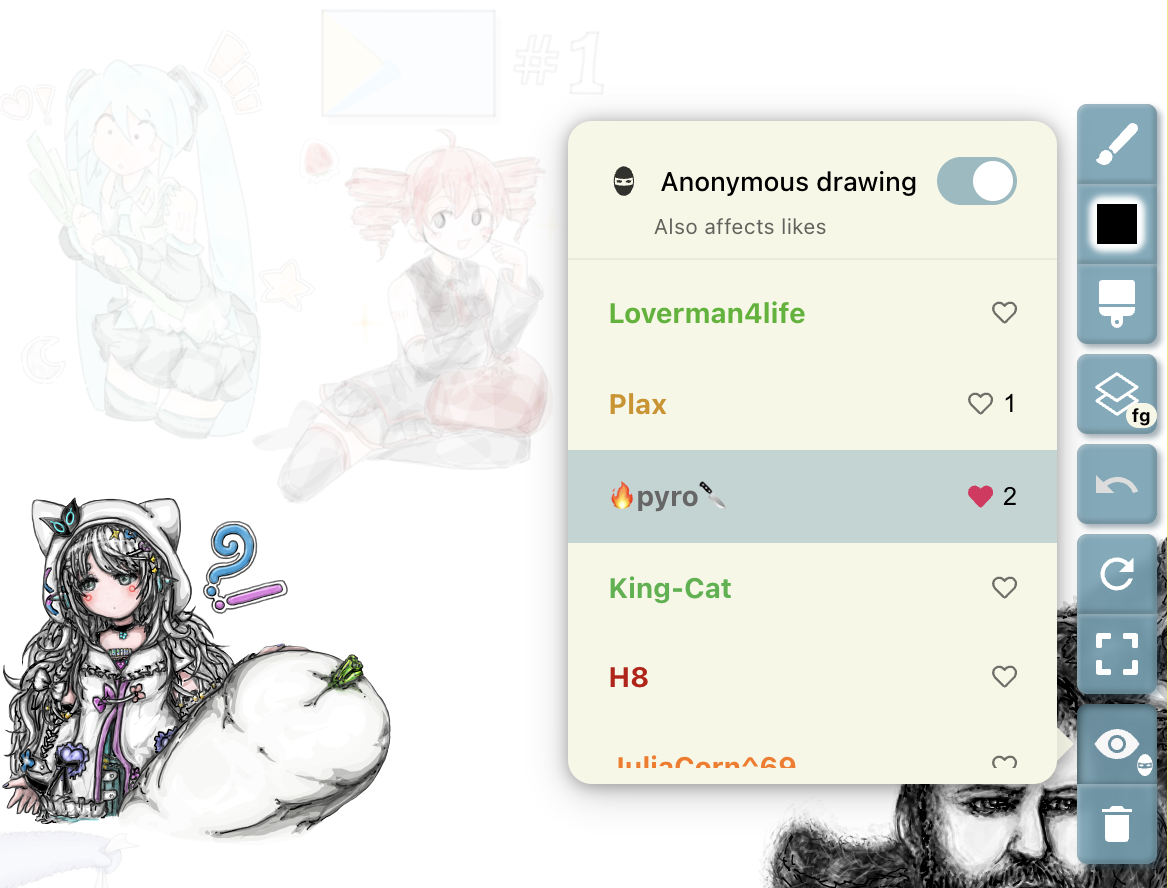
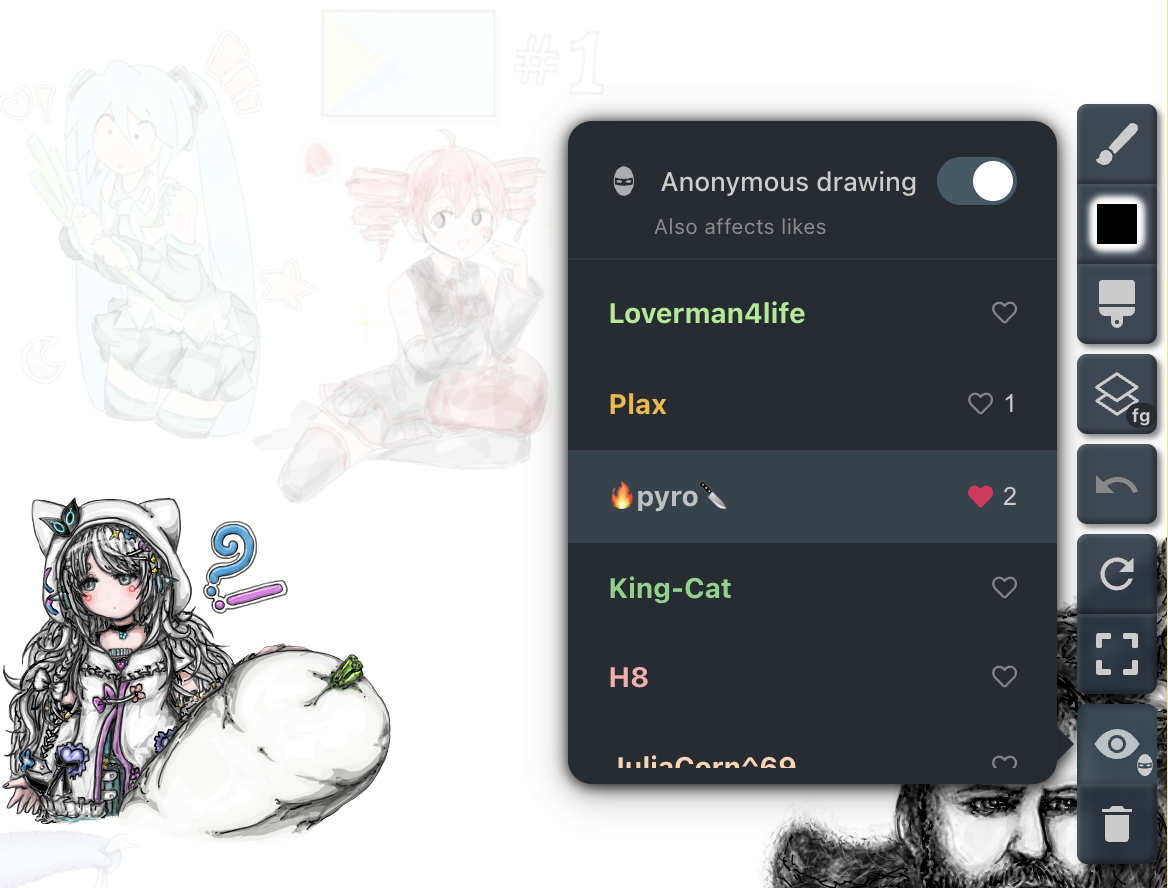
- Highlighting Artwork: Hover over a participant's name to highlight their strokes by dimming all other drawings on the canvas.
- Pinning a Highlight: Click on a participant's name to pin the highlight, allowing you to explore the canvas while keeping their artwork emphasized.
- Liking Artwork: Click the heart icon next to a participant's name to like their drawings in the current canvas session. The total number of likes they have received in the current session is displayed next to the heart icon.
- When you like a participant for the first time in a session, a celebration notification is posted in the room chat (for example,
8h liked 🔥pyro🔪's drawing). - You can click the heart icon again at any time to remove your like.
- Note: Only registered users can cast likes. Guests can receive likes on their artwork, but cannot like others.
- When you like a participant for the first time in a session, a celebration notification is posted in the room chat (for example,
- Anonymous Drawing & Liking: At the top of the menu, you can toggle Anonymous drawing on or off.
- Private Strokes: When enabled, any strokes you draw while in anonymous mode will be excluded from the drawing participants list, keeping your identity private for those strokes. While active, a mask badge appears directly on the Drawing Participants toolbar icon so you never forget that you are drawing anonymously.
- Private Likes: Anonymous mode also affects likes. When enabled, any likes you cast will also be anonymous—the participant's like count will increase, but no notification will be posted in the chat.
Clearing
Different rooms have different clearing policies, which can be reviewed in Clearing Menu.
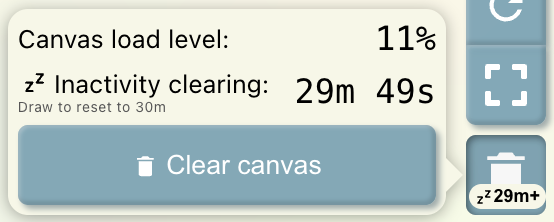
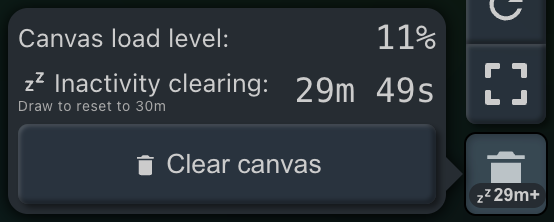
There may be three timers:
- Min session time — Enables the Clear canvas button only after it expires.
- Inactivity timer — Auto-clears the canvas after the specified inactivity period.
- Max session time — Auto-clears the canvas after the specified session time.
Some rooms have the Clear canvas button enabled for everyone, while others have it enabled only for room owners and moderators.