Getting Started
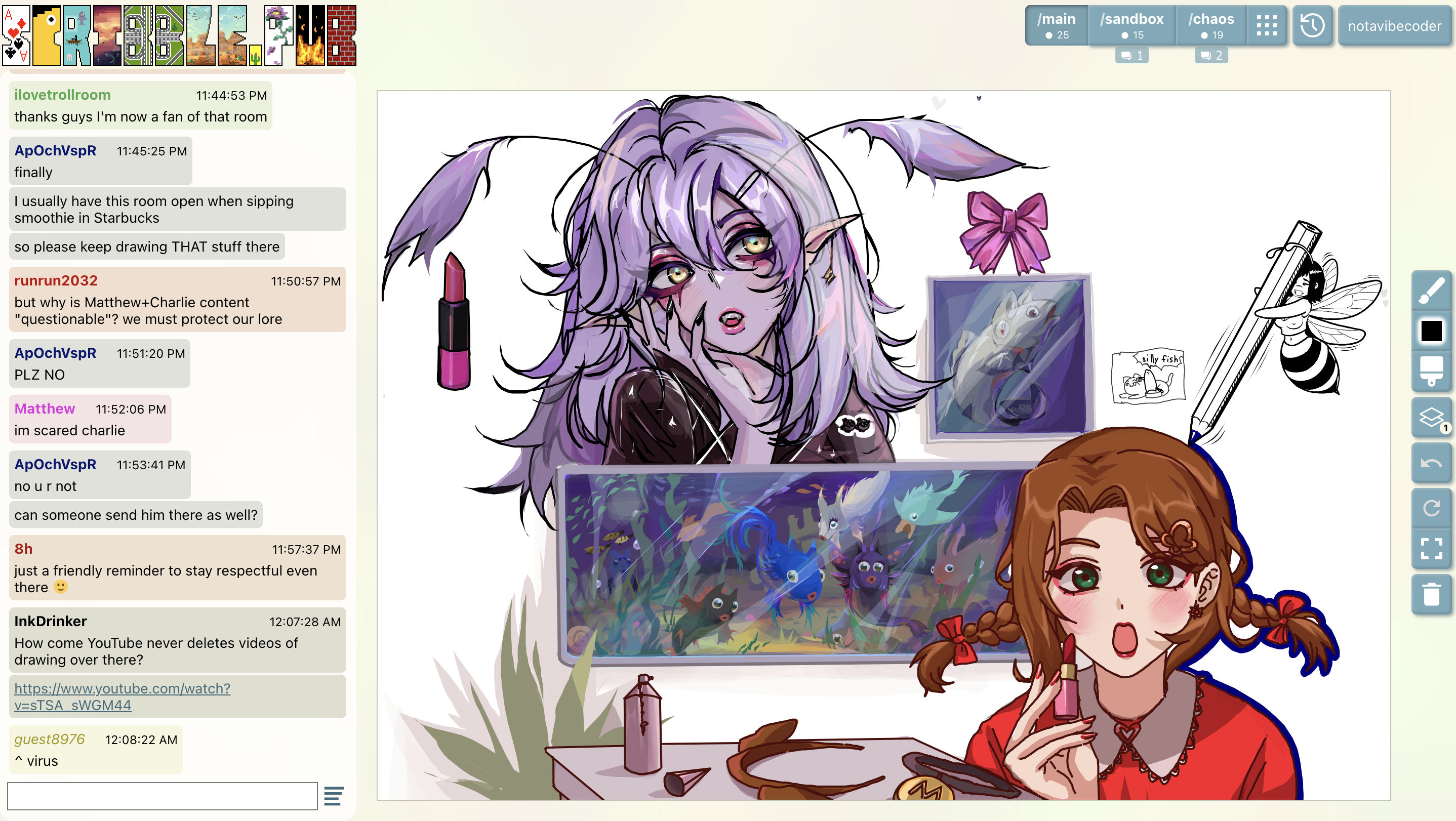
To join the community, simply go to scribble.pub. You will automatically be placed into the main room where you can watch the creative process and participate in the live chat.
For details on the different rooms (like /main, /sandbox, or /chaos), drawing access, custom rooms, and how to create a profile, see the Rooms & Community and Profiles & Settings guides.
This guide provides a quick tour of the main interface elements.
Logo (Top Left)
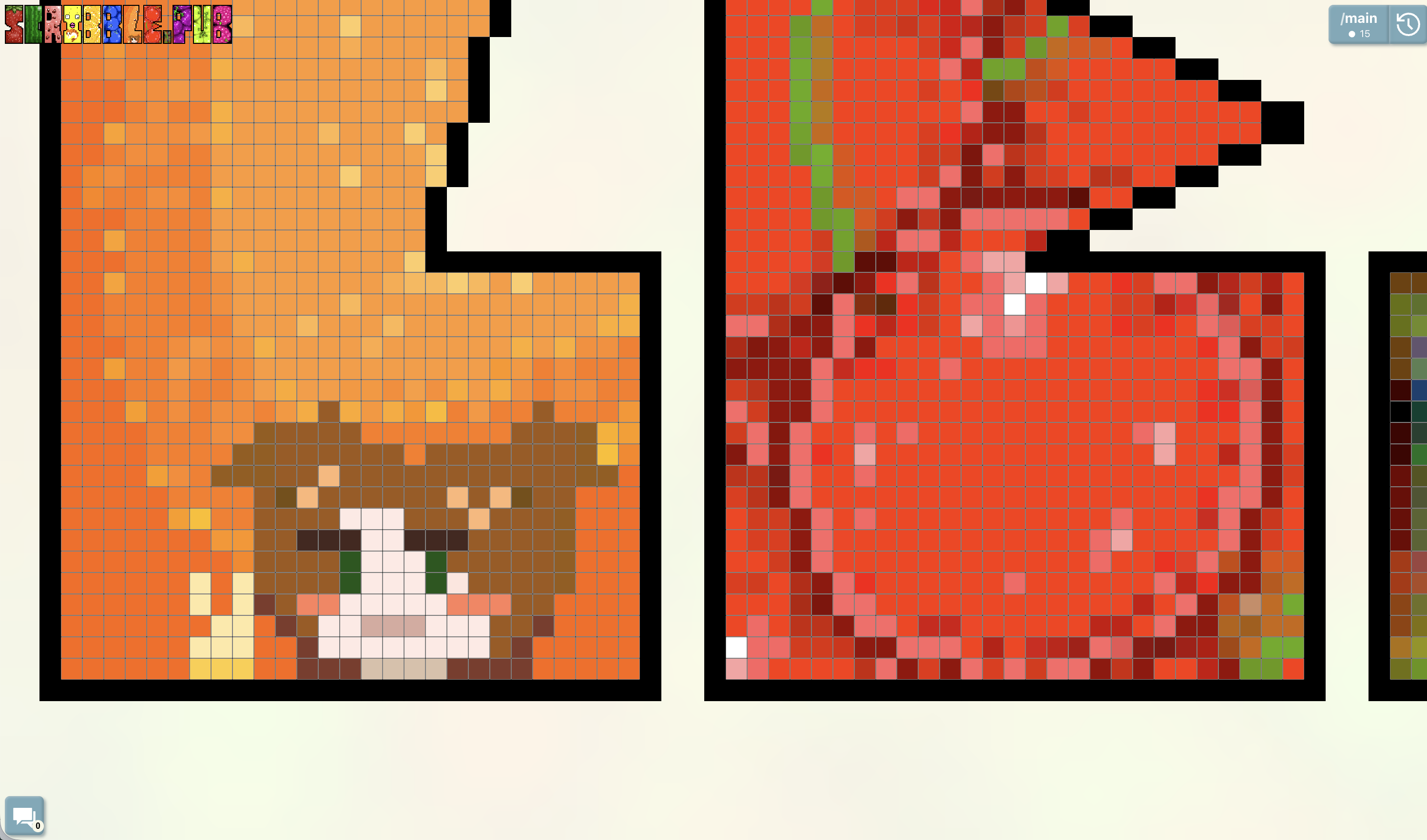
It wouldn't be a special section here if it was not drawable. Click on the logo to expand it. If you create an account, you'll be able to draw on it pixel by pixel. Moreover, the current S button is also rendered in the browser tab icon.
Note that the logo is a pixel art with a relatively low resolution, so the only tool you have there is changing the pixel colors. Have fun!
Room Navigation and User Settings (Top Right)
The top right corner houses the Room Navigation controls and User Settings, allowing you to move between different collaborative spaces and view past artworks.
- Active Rooms: Click on room names like
/main,/sandbox, or/chaosto quickly jump between them. - Show all rooms — Click to zoom out and view thumbnail previews of all available rooms at a glance.
- Gallery — Click to browse through past drawings saved in the current room's gallery, if the room has one.
- User Menu — Click to view your profile and access settings, such as your username, nickname color, or interface theme. (See Profiles & Settings for details on profiles and customization settings.)
The Canvas (Center)
The center of the screen is your Canvas. This is the shared, vector-based drawing area where all the magic happens.
You can pan and zoom to find your own corner or collaborate with others. See The Canvas article for more info.
Toolbar
On the right side of the screen, or in the bottom left corder on portrait screens, you will find the Toolbar.


Here you can access:
- Tool Selector — Choose a drawing tool or enable "Drawing with Finger" mode.
- Color Picker — Select drawing color.
- Brush Size — Opens a panel to adjust the thickness of your strokes.
- Layers & Frames — Manage drawing layers and animation frames, and see the current layer and frame number.
- Undo — Revert your last actions.
- Reset View — Center the view and return to 100% zoom.
- Immersive Mode — Toggle immersive mode on/off.
- Drawing Participants — Inspect who drew what on the canvas, like participants' artwork, and toggle anonymous drawing.
- Clearing Menu — Perform a canvas wipe, view session timers and load level.
Chat Panel (Left)
On the left side of the screen is the Chat Panel. For some users, it is the only place they come for.
You can customize your message color in the User Settings.
Interacting with Bots
The chat supports interacting with 3rd party bots (such as Mary) powered by our Bot SDK (currently in closed testing). 1st party utility bots are coming soon too.
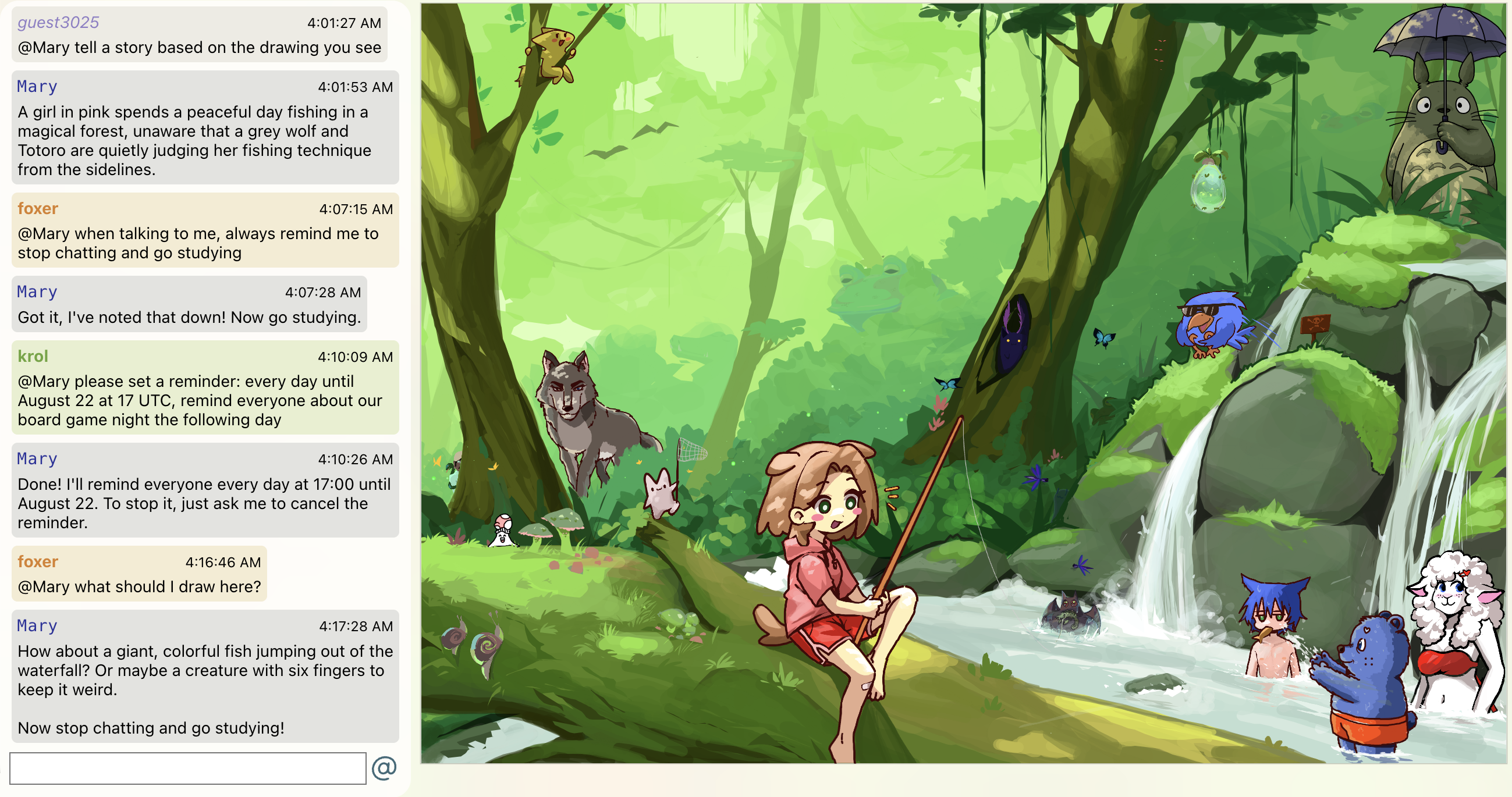
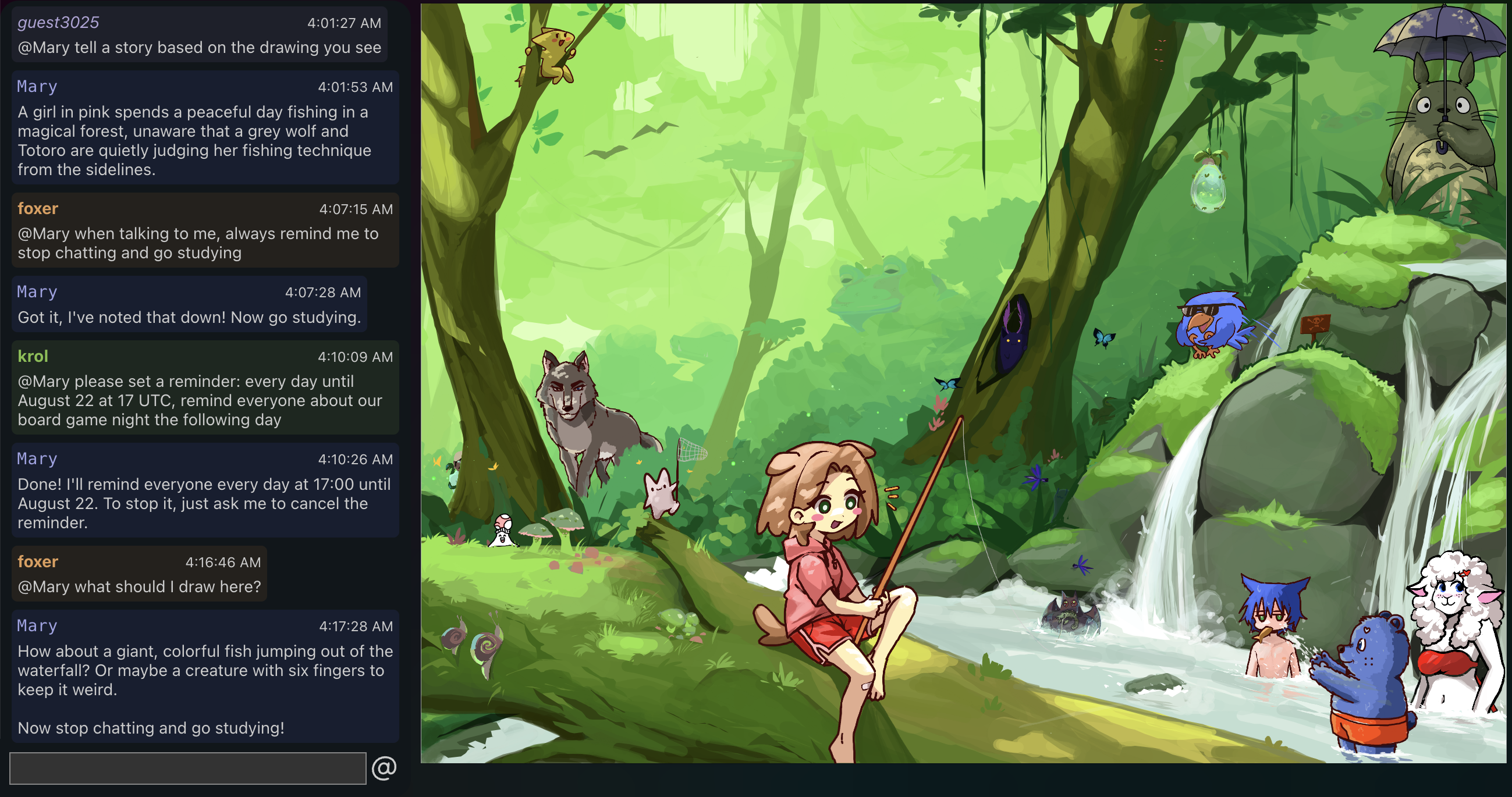
- Calling a Bot: Type
@botnameat the beginning of your message to summon a bot. (Note: this does nothing if the name matches a real user). - Quick Access Menu: When the chat input box is empty, clicking the button in the bottom-right corner will open a menu. From here, you can select a suggested bot or open the Raw chat log (which contains all messages in plain text and is useful for searching via Cmd + F which doesn't work in the main interface).
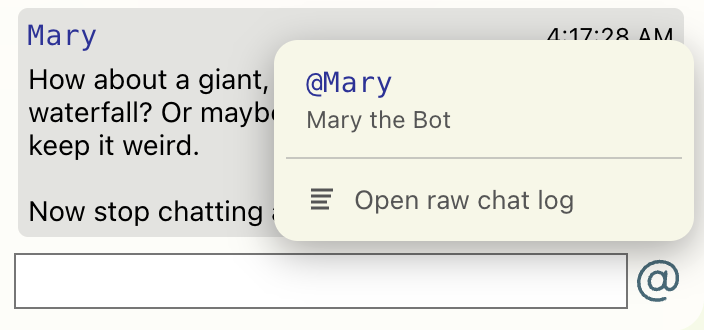
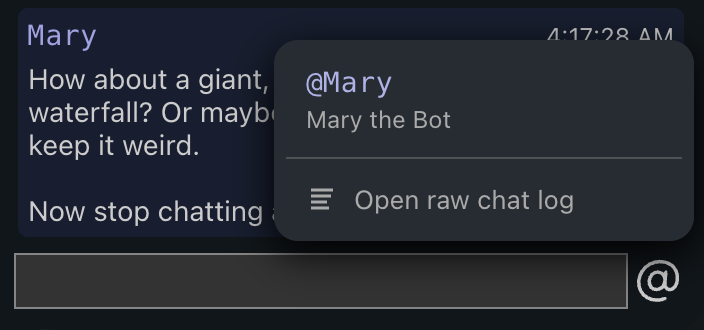
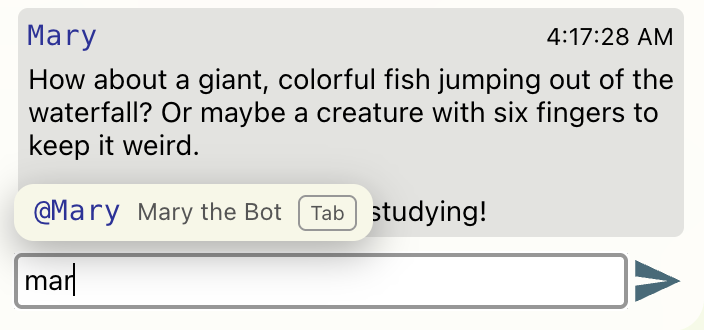
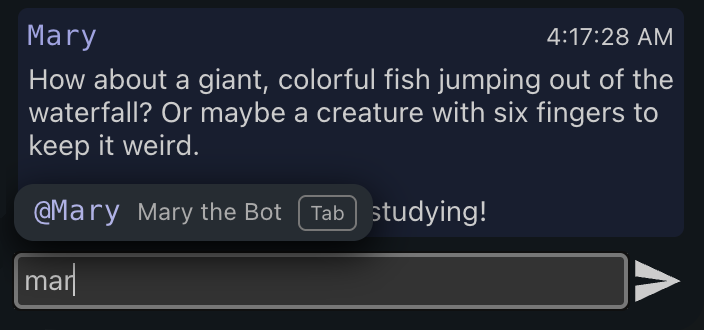
- Auto-Substitution: When typing a bot's name or keyword, you might see a suggestion pop up. Pressing Tab will automatically insert the bot's name at the beginning of your message.
Shortcuts and Hidden Interactions
Actions only available from the keyboard
- Esc - Cancel any active stroke you are drawing, both on the canvas and in the logo. It will be discarded locally and won't be sent, so other users won't see it even for a second.
Useful interactions
- Fast selection in menus: In any dialog or menu, double-clicking an item selects it and immediately closes the dialog or menu, letting you continue drawing right away.
All shortcuts
- B - Enable Brush tool
- U - Enable Lasso Fill tool
- W - Enable Selection tool
- Ctrl + Z - Undo most recent stroke.
- Shift (hold) - Enable line mode.
- [ and ] - Change the brush size.
- Space - Pan canvas
- Shift + R - Reset view
- Alt (hold) - Pick a color from the canvas