Profiles & Settings
You can participate on scribble.pub either by registering a profile or drawing as a guest. The system provides different capabilities depending on your session type:
| Feature | Registered Users | Guest Sessions |
|---|---|---|
Draw in /main | Yes (after obtaining an invite) | View/Chat only |
| Custom Username | Yes (persistent, unique profile) | No (automatically assigned guest name) |
| Custom Stroke Color | Yes | Yes |
| Nickname Color in Chat | Yes (persistent) | Yes (session-based) |
| Logo Canvas Editing | Yes (can draw/edit pixels on the logo) | View-only |
There are some other features that can be enabled/disabled for different roles and rooms, such as using Lasso Fill, Clearing.
Creating a Profile
Registering is quick and helps you build your identity in the community:
- Click on the User Menu (top-right corner of the interface).
- Choose between Sign in with Google or Sign in with email.
- Follow the instructions to create your profile.
Once registered, you can log in from any device to retrieve your profile and nickname settings. If you want to join the /main room, introduce yourself in the chat and ask a moderator for an invite.
Settings & Customization
The User Menu is accessed by clicking on your username or button in the top-right corner and allows you to customize your experience.
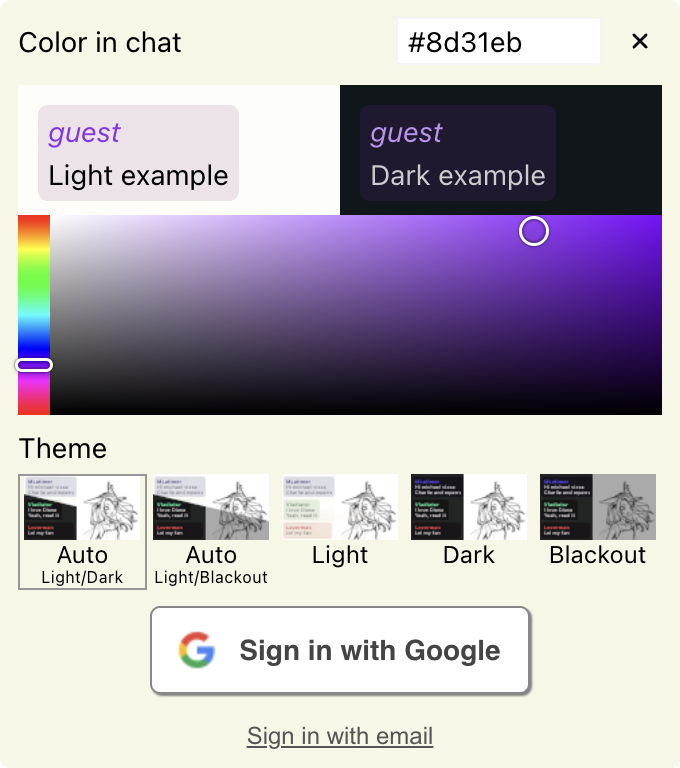
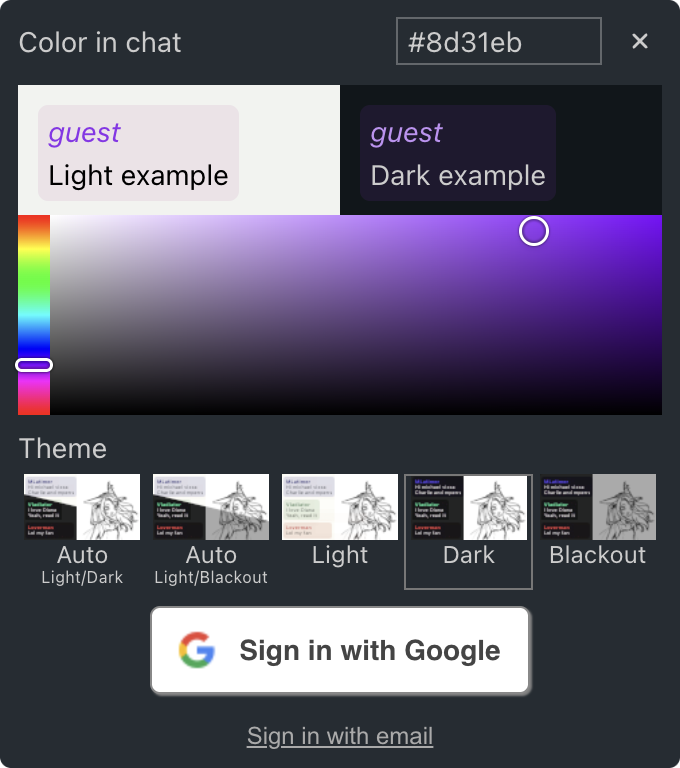
User & Nickname Color
- For Registered Users: You can change your display name and choose a unique identification color.
- For Guests: You can change only your identification color for the duration of your session.
This color is not only for your chat nickname—it also identifies you across the canvas, such as in the Drawing Participants menu when inspecting artwork. The color is adjusted automatically to ensure it remains visible in both light and dark themes. You can preview the chosen color in both themes in the settings panel.
Interface Themes
scribble.pub has three themes, plus two automatic modes that follow your system setting:
- Light: Clean, high-contrast mode for drawing in well-lit rooms.
- Dark: Sleek, dimmed interface that reduces eye strain. Keeps the original colors of the artwork intact.
- Blackout: An ultra-dark theme designed specifically to save your eyes when drawing in bed or during late-night sessions. Even the drawing canvas is darkened to reduce eye strain.
- Auto: Light/Dark: Automatically switches between light and dark themes based on your system settings.
- Auto: Light/Blackout: Automatically switches between light and blackout themes based on your system settings. Convenient for those who only turn on systemwide dark mode when it's time to sleep.