Toolbox
scribble.pub provides a basic set of tools to draw and edit objects on the canvas.
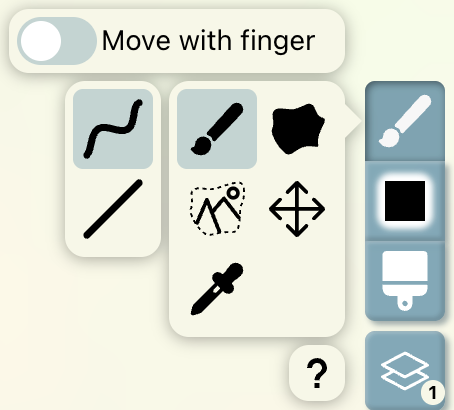
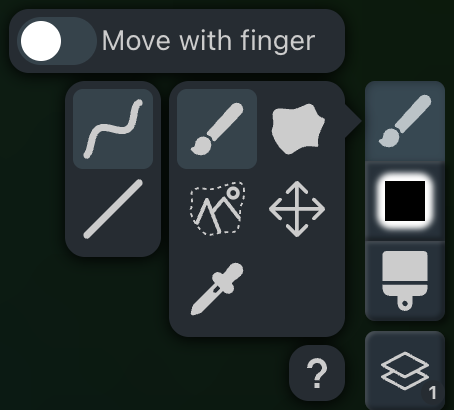
Interaction Settings
Move with finger
When using a touch-enabled device, a Move with finger toggle appears at the top of the Toolbox once a tap is detected.
- When enabled: You can use your finger to pan and zoom around the canvas. To draw, you must use a stylus or another pointing device.
- When disabled: You can draw directly with your finger.
Drawing Tools
The Brush or Lasso Fill object is sent to the server and presented to other users only after you lift your pen or mouse.
You can set the color via the Color Picker menu in the toolbar.
Where is the Eraser?
Looking for an eraser tool? Because scribble.pub uses a vector-based canvas, there is no traditional eraser. You can read more about why and what to use instead in our FAQ.
Drawing Controls
- Cancel active stroke — Press Esc while drawing (before lifting your pen) to discard the stroke.
- Nobody will see a stroke you're not happy with.
- Undo last action — Press Ctrl + Z to revert your last submitted stroke.
Brush
Brush is the most basic drawing tool. It allows you to draw strokes on the current frame by dragging the mouse, stylus, or finger.
Shortcut: B.
Performance Warning
Brush is the most performance consuming tool. Its usage will consume the limits faster.
- Use Lasso Fill if you want to color large areas.
Brush Size
You can change the brush size using Brush Size menu in the toolbar or by pressing [ or ].
Design experiment
This brush slider provides a fully interactive preview of the stroke.
- True Thickness — The stroke rendered inside the slider matches the exact thickness you will get on the canvas and adjusts to the canvas zoom level.
- Non-linear scale — The slider scale is adjusted to provide more precise control over small sizes.
- Multi-Angle Visualization — For small to medium sizes, the stroke is displayed as a smooth, wiggling wave. This lets you visualize how the line looks at different angles and drawing directions.
- Massive Sizes — When the brush size is too large to fit as a wave, the preview transitions to a solid, flat-capped bar accompanied by a circular outline that indicates the exact brush diameter.
In some rooms, the brush size is restricted for guests or for everyone to prevent vandalism.
Lasso Fill
Lasso Fill allows you to draw a closed loop that automatically fills with the current drawing color. This is great for blocking out large shapes quickly.
Shortcut: U.
In some rooms, this tool is not available for guests or for everyone to prevent vandalism.
Drawing Modes
Both drawing tools can be used in two modes: Freehand and Line.
Freehand mode
Freehand mode allows you to draw naturally with organic, flowing lines.
Line mode
Line mode allows you to draw perfectly straight vector strokes.
Pro Tips
You can temporarily switch to Line mode by pressing and holding the Shift key while in the freehand mode.
Performance Warning
Prefer Line mode instead of Freehand mode when possible. There is no need to overdo with this, but it's worth keeping in mind that the less control points your lines have, the less load they put on devices.
Selection
Selection tool allows you to select objects on the canvas and either remove them or move them to another frame.
Shortcut: W.
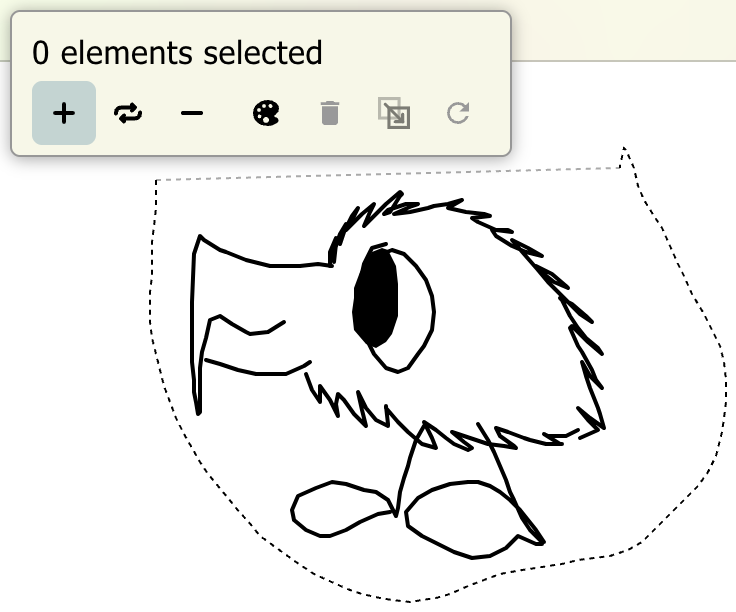
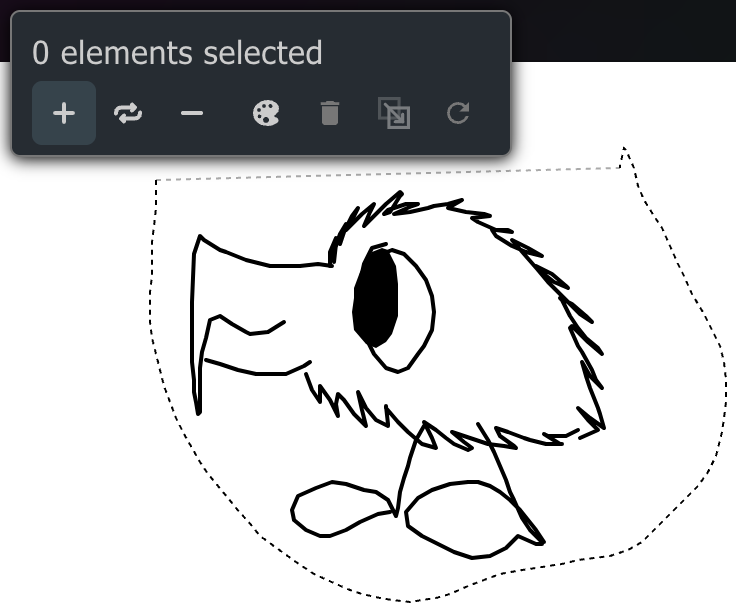
You can select objects either by clicking on them or by drawing a region that completely encloses them. Only objects that belong to you and lie on the current frame can be selected.
- Add to current selection — adds the newly selected objects to the current selection.
- Replace current selection — replaces the current selection with the newly selected objects.
- Remove from current selection — removes the specified objects from the current selection.
- Select objects of the same color — selects all objects that have the same color as the newly selected objects.
- Delete objects — deletes the selected objects, with a confirmation warning.
- Move to another frame — moves the selected objects to another frame, specified in the newly opened Layers & frames dialog.
- Reset selection — clears current selection.
Move
Move tool just moves the view around as you drag it.
Shortcut: Space (only active as you hold the key down).
Eyedropper
Eyedropper tool allows you to pick a color on the canvas.
Shortcut: Alt (only active as you hold the key down).
There are currently 2 modes available:
- 100% opacity — when selected, the eyedropper picks the color of the pixel being hovered over.
- Preserve opacity — when selected, the eyedropper picks the color of the pixel being hovered over, but the opacity you set in the color picker is preserved. This mode is useful for scenic drawings such as https://scribble.pub/main/1732814725.