Layers and Animations
Layers
Layers are used to organize your drawing and to create multi-frame animations.
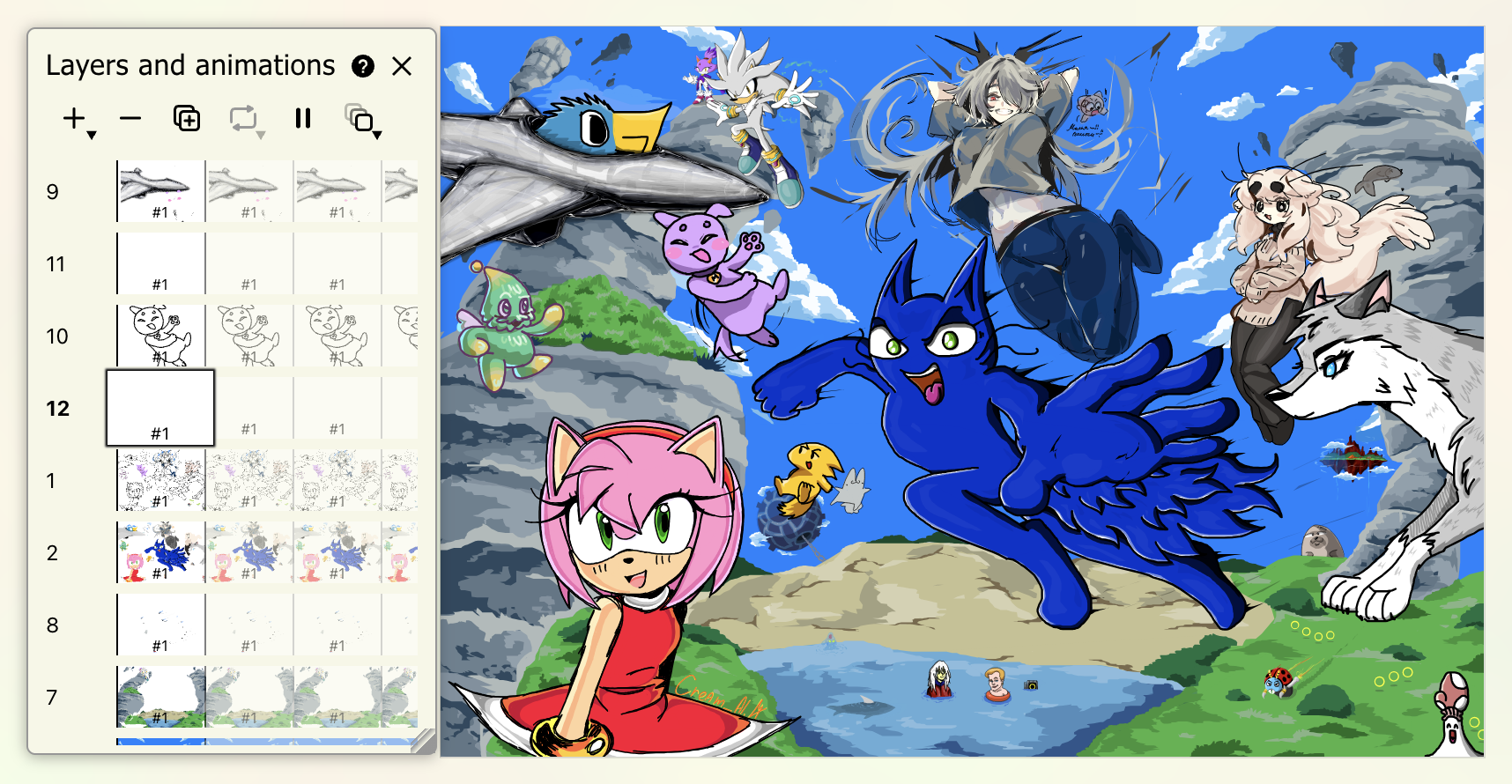
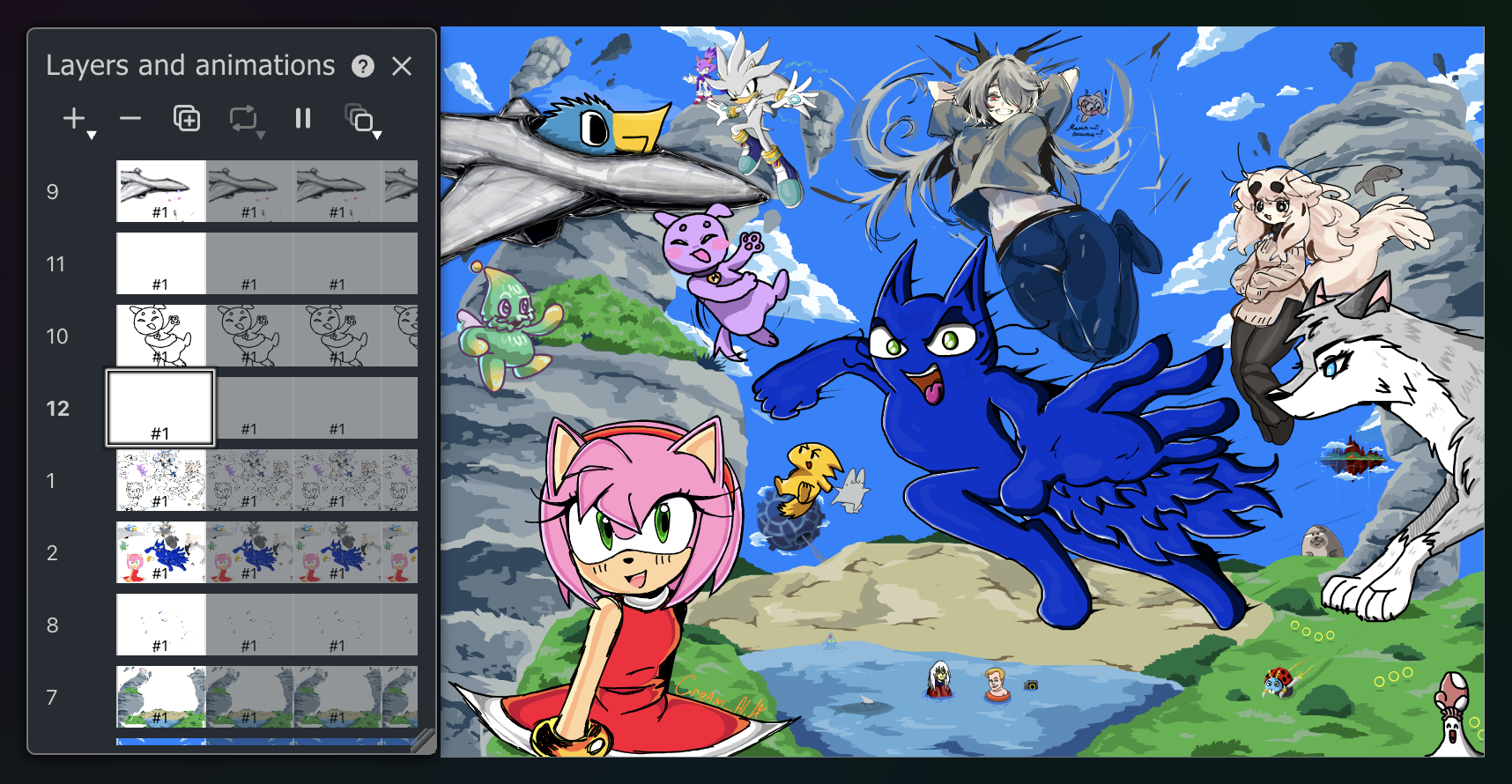
There are 2 default non-deletable and non-modifiable layers: fg (foreground) and bg (background).
You can create new layers by clicking the Add… button in the layers panel. It will offer an option to create a layer below or above the currently selected one.
Layers owned by you are indicated by bold layer number in the layers panel.
Layer ID represents creation order, not the actual layer index.
You can delete your layer by using the Remove frame button in the layers panel, as long as it has only one frame remaining. This action currently can't be undone.
WARNING
Be careful when drawing on layers apart from the default fg, bg or layers owned by you. Otherwise your work may be removed by the creator of the layer. Consider making your own layer to draw instead.
You can move individual lines between layers and frames using the Move to frame feature of the Selection tool.
Animations
Although the tool set is currently minimal, you can power up your drawings with animations.

The platform currently has a fixed refresh rate of 8 frames per second, i.e. each frame is displayed for 125ms. If you want to slow down the animation, use Repeat Frame button to postpone the next frame.
Repeated frames share their content
Repeat Frame doesn't create a separate copy of the frame — it just shows the same frame again at another point on the timeline. If you edit the artwork, the change shows up everywhere that frame is used.Different layers can have different number of frames. Read more about looping below.
Editing frames at any position is supported. For example, in a 4-frame animation, deleting the frame at tick 7 will delete the 3rd frame, as it is the 3rd tick of the second loop.
Animate on your own layer
New frames can only be added to a layer you own. You can't add frames to the default fg/bg layers or to layers created by other users, so every animation needs its own layer — create one first (see Layers above).
How to create a simple animation

We will not just create this animation step-by-step, we will also see where things can go wrong and how to fix them.
Before we begin
Have a better tutorial idea or some creative tips to share? Or perhaps you've created a video on YouTube, Instagram, or TikTok showing how you use our animations?
We would love to see it! Share it with the community or tag us on Bluesky, X (Twitter), Instagram or TikTok so we can check it out and feature it!
Animation modes
You can choose between the following modes for your layers which have at least two frames:
- Sequential - plays frames in order. The default mode, used for continuous animations.
- Random - plays frames in a random order. The tick choice is different for every user.
- Roll - selects the tick randomly when a user sends
/rollcommand in the chat, and keeps showing the same tick until the next roll. The tick is generated on the server and is the same for all users, so it's a great choice for drawing and playing board games.
/roll in the chat.Sequential timeline loop
The Sequential animation mode loops forever. If your layers have different numbers of frames (such as 3 and 4), and neither is a multiple of the other (as 3 and 6 would be), they will loop out of sync, creating different combinations of frames as the animation plays (see such a case in the tutorial above).
For example, when the 3-frame layer completes its loop and starts over at its 1st frame, the 4-frame layer will show its 4th frame. On the next tick, the 3-frame layer will move to its 2nd frame, while the 4-frame layer loops back to its 1st frame. The interface supports infinite scrolling, so you can scroll as far as you need to find the combination of frames you want.
If you Pause the animation, the tick you are currently on in the layer list will be shown for all Sequential layers.
Random and Roll loops
Random and Roll modes have a uniform effect on all layers. This means that you can spread your drawings across multiple layers and make them work in a predictable way.
In the simple case, when all layers have the same number of frames, it will be the same tick shown for all of them at a time.
In the example below, layers 3 and 4 have frames showing numbers from 1 to 3. You can see that it's always the same number shown for both layers.


In a more complex case, keep in mind that the frames are chosen by selecting a random percentage and applying it to every layer individually. For example:
- For a layer with 4 frames, the percentage below 25% corresponds to the 1st frame, percentage between 25% and 50% - to the 2nd frame and so on.
- For a layer with 3 frames, the percentage below ~33% corresponds to the 1st frame, percentage between ~33% and ~66% - to the 2nd frame and so on.