Rooms and chat
Switching rooms
Tap the room button at the top left to see all rooms, each with a live preview of its canvas, how many people are in it, and its unread messages. Tap a room to go there.
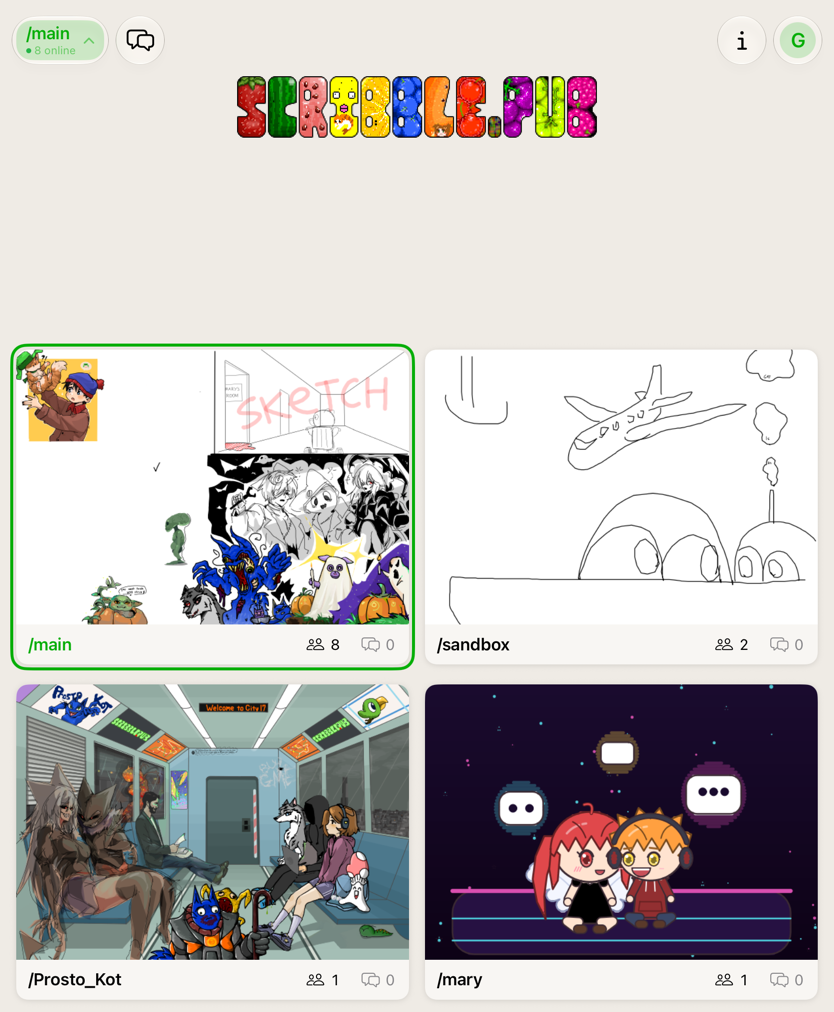
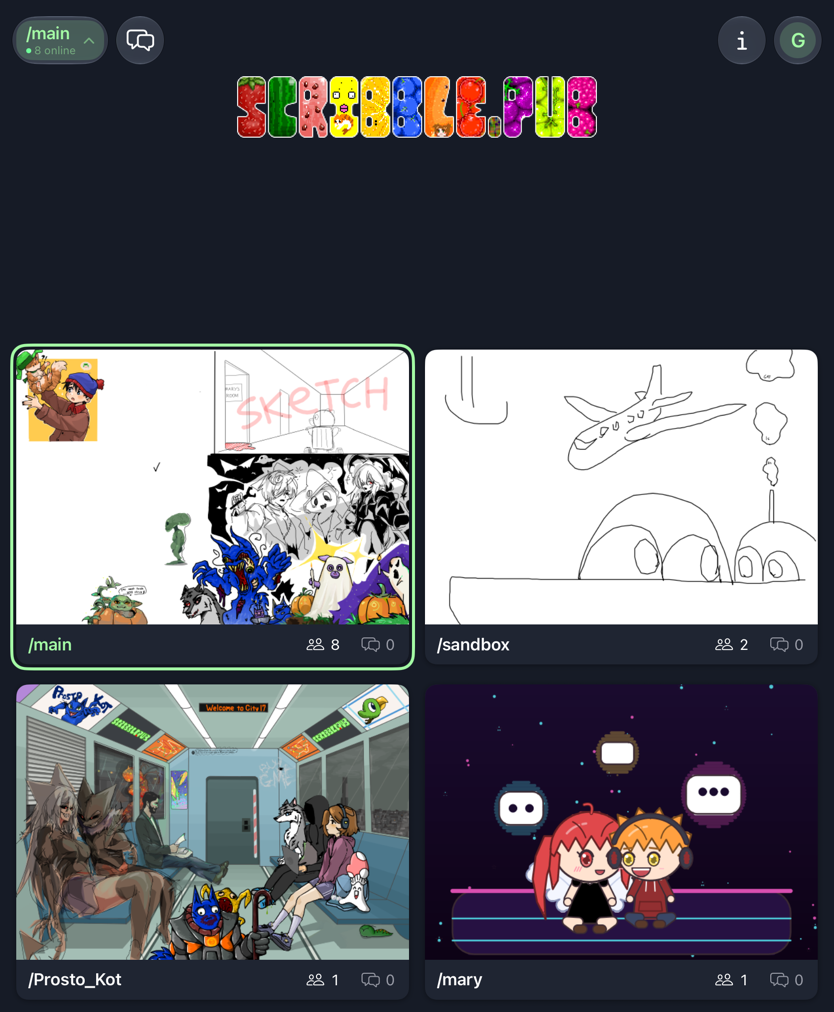
- /main — the community's main canvas. Everyone can watch and chat, but only invited members draw. Want to join? Sign in, introduce yourself in the chat, and tap Ask to join under the room's notice.
- /sandbox — open to everyone: the place to try things out.
- Other rooms, such as /mary or /Prosto_Kot, belong to community members or bots. Who can draw there is up to the room: if you can't, a notice under the top bar says so.
Tap the chat count on a room's card to read that room's chat without leaving the list. That's handy for catching up on several rooms in a row.
The logo
The scribble.pub logo at the top of the room list is pixel art drawn by everyone together. Tap it to open it. If you're signed in, you can draw on it pixel by pixel.
The room panel
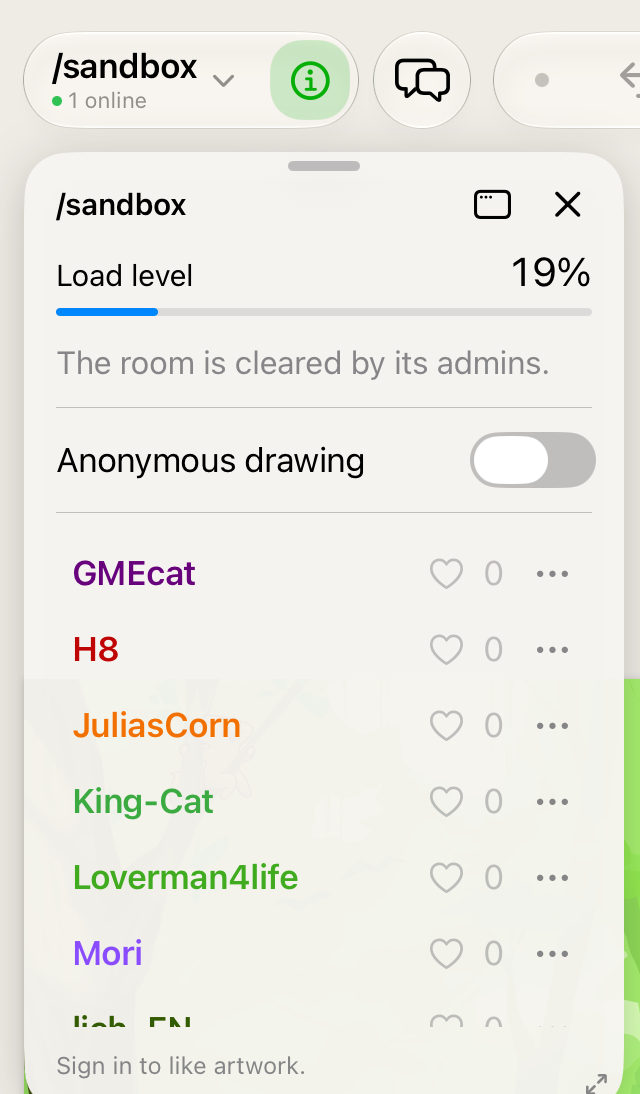
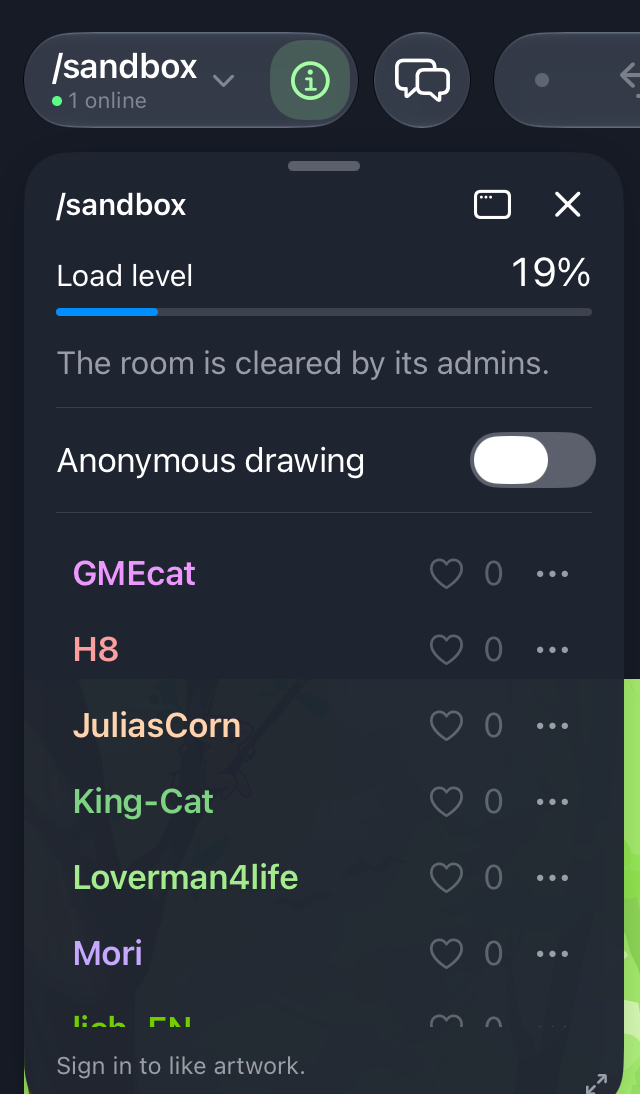
Tap ⓘ next to the room button. A badge on it counts down to the next automatic clearing of the canvas.
Load level and clearing
- Load level — how full the canvas is. At 100% nobody can draw until it's cleared. See the room is full.
- Clearing — when the canvas is cleared automatically, and, in rooms that allow it, a Clear Canvas button. It may say Available in… until enough time has passed. In other rooms, the canvas is cleared by its admins.
Who's drawing
The Participants tab lists everyone with lines on the canvas.
- Tap a name to highlight their drawing: everything else fades. A banner at the top lets you show everyone's drawings again. If their lines are off screen, the canvas moves to them.
- Tap the heart to like their drawing; the first time you do, the chat says so. Tap it again to take the like back. Only signed-in people can like, but anyone can be liked.
- ⋯ next to a name lets you report or block them.
Anonymous drawing, at the top, leaves your name out of this list for the lines you draw while it's on. Likes you give while it's on are anonymous too: they count, but don't show up in the chat. While it's on, a mask badge on the ⓘ button reminds you.
Gallery
Rooms that keep their past drawings have a Gallery tab. Tap a drawing to open it. A banner shows when it was drawn, and Back to current drawing returns you to the live canvas. Use the share button on a drawing to send someone a link to it.
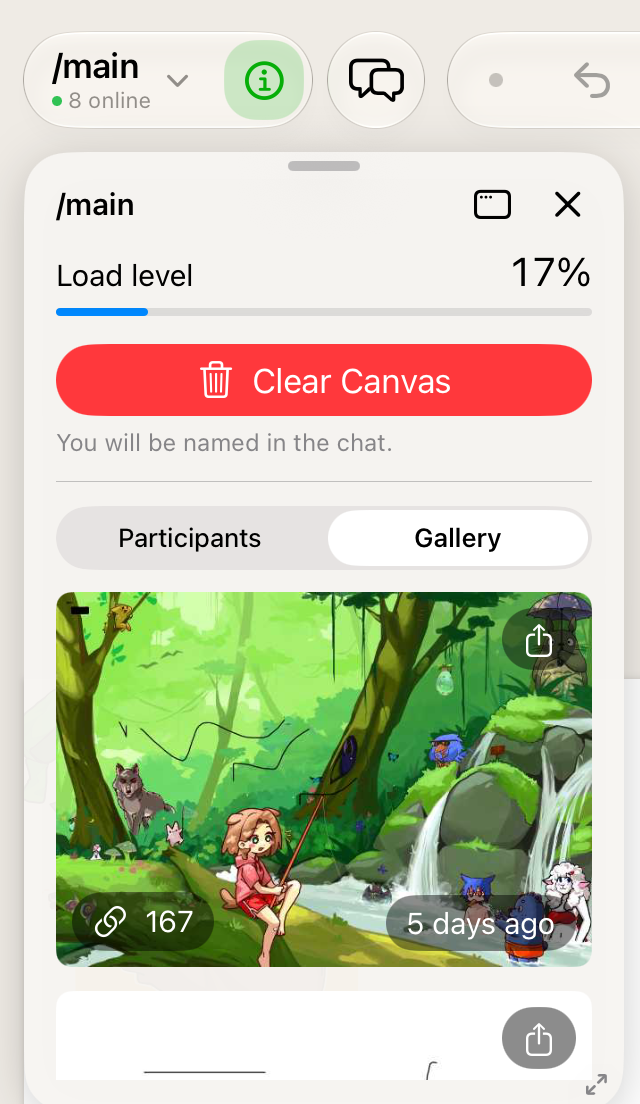
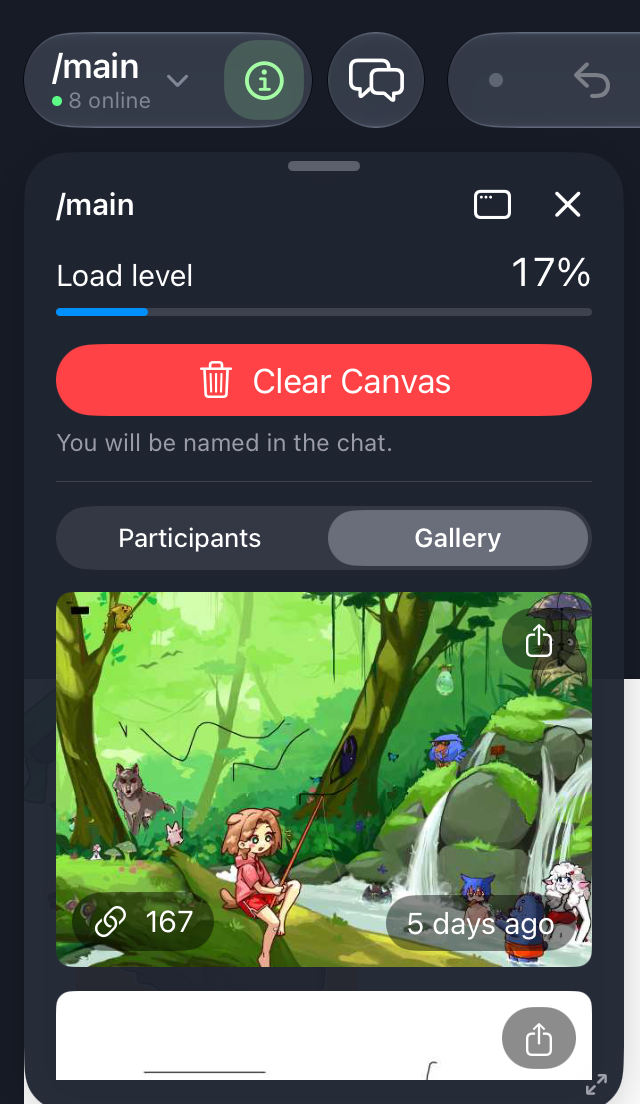
On iPad in landscape, the room panel can stay pinned at the side of the screen. Use the menu in its header to choose.
Chat
Tap the chat button: next to the room in the top bar on iPad, at the bottom left on iPhone. The chat opens over the canvas; tap the button again to close it.
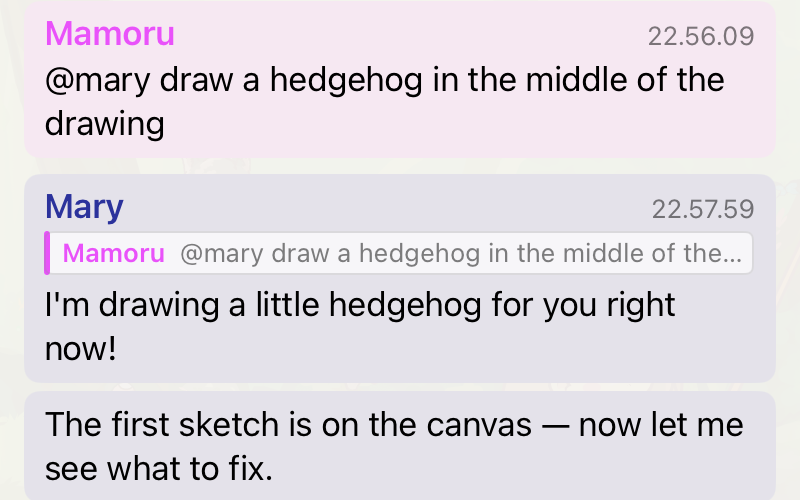
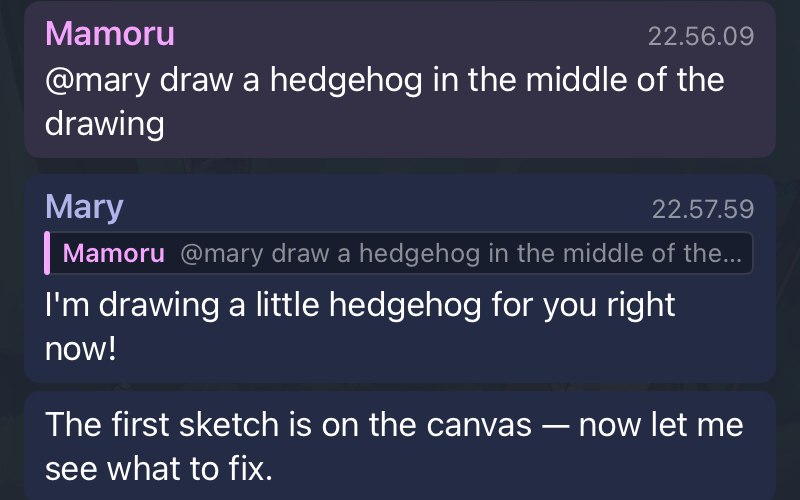
- Tap a message for its menu: Reply, Quote…, Copy, and for other people's messages Report and Block.
- Swipe a message to the left to reply to it.
- Touch and hold to select part of the text, then quote or copy just that.
- Tap the quote above a reply to jump to the original message.
- Likes in the chat ("… liked …'s drawing"): tap one to see the drawing that was liked.
- Unsent messages stay in the box when you switch rooms, so you can finish them later.
Bots
Some rooms have bots you can talk to, like Mary. Start your message with @ and the bot's name, or tap @ next to the message box to pick one.
Reporting and blocking
If someone breaks the rules, report them: tap their message and choose Report Message…, or tap ⋯ next to their name in the room panel. Pick a reason and, if you like, add a note. The moderators see the chat and the canvas as they were at the time. The person isn't told who reported them.
Block someone to stop seeing their messages, in every room. They aren't told. Their drawings stay, because the canvas is shared by everyone in the room. To undo blocking, use Unblock All in your settings. It unblocks everyone at once.