scribble.pub for iPhone and iPad
scribble.pub is a shared drawing space: everyone in a room draws on the same canvas and chats while they're at it. This guide covers the app for iPhone and iPad. If you use scribble.pub in a browser, see the web guide.
When you open the app, you land in a room: its canvas fills the screen, and everything else floats around it.
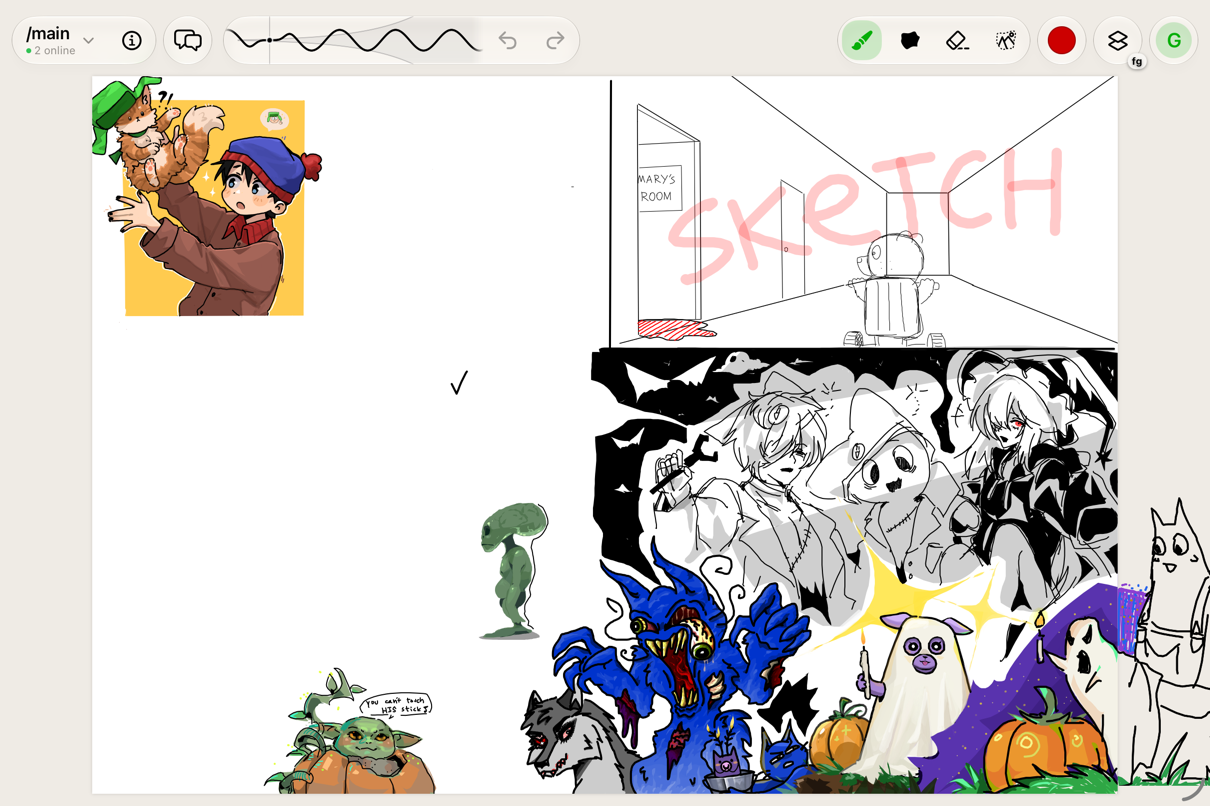
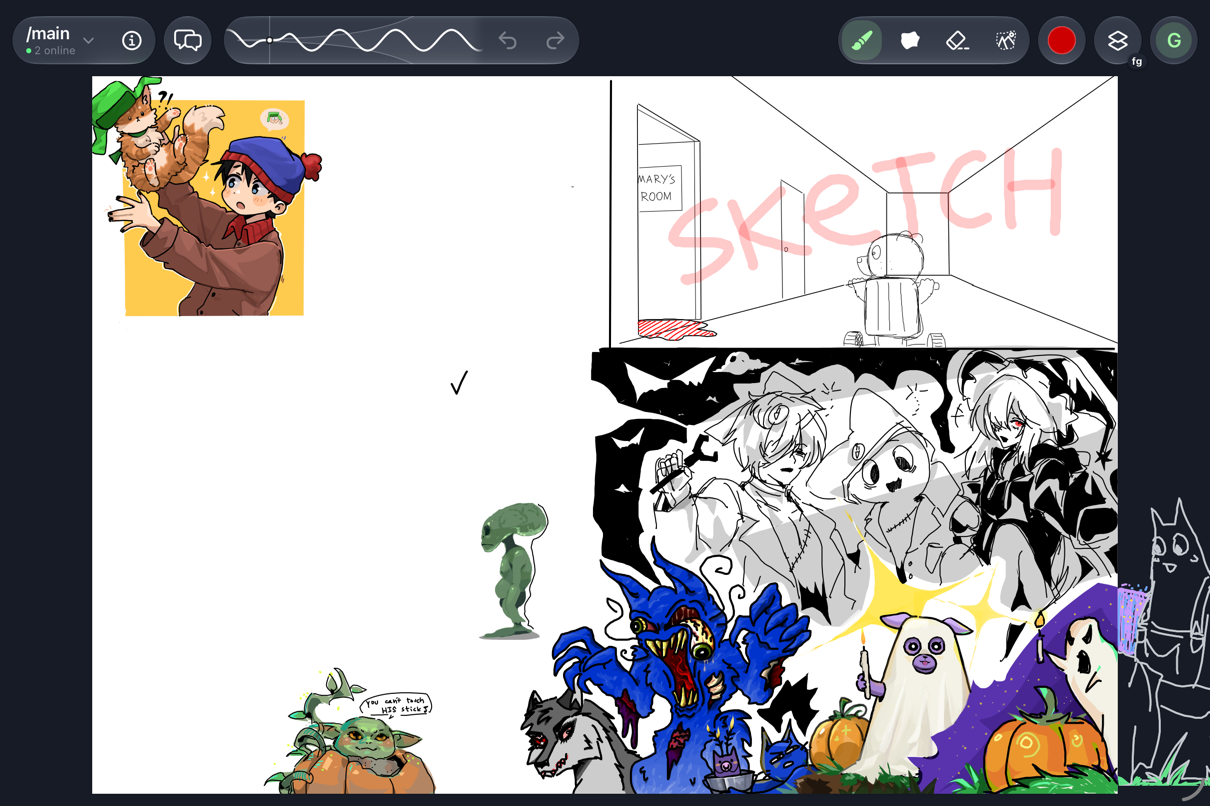
On iPad: the top bar
From left to right:
- Room button (the room's name and how many people are online) — opens the list of rooms.
- Room info (ⓘ) — the room panel: when the canvas gets cleared, who's drawing, and the gallery of past drawings.
- Chat — opens the chat. The badge counts unread messages.
- Brush size and Undo / Redo — see Drawing.
- Tools — Brush, Lasso Fill, Stroke Eraser and Selection. Tap the selected tool again for its options. See Drawing tools.
- Color — the color picker.
- Layers and animations — opens the timeline. The small label shows the layer you're drawing on.
- You — your profile and settings.
If the window is a bit narrow (an iPad mini in portrait, for one), the tools fold into a single button that shows the current tool. Tap it to pick another one. In an even narrower window, such as Split View, the app switches to the iPhone layout.
On iPhone: the bottom row
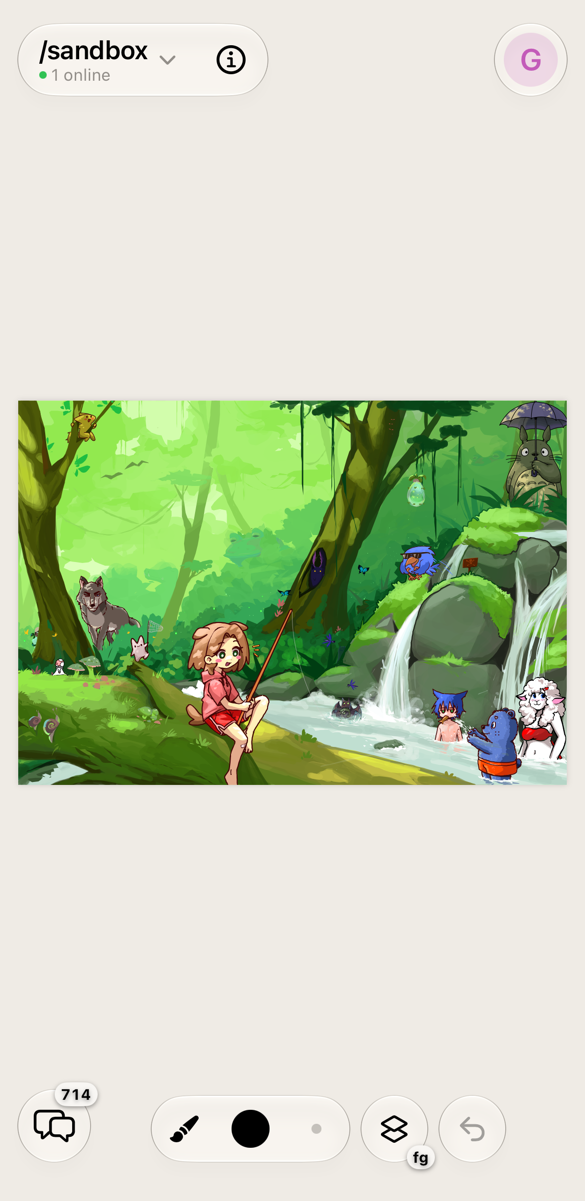
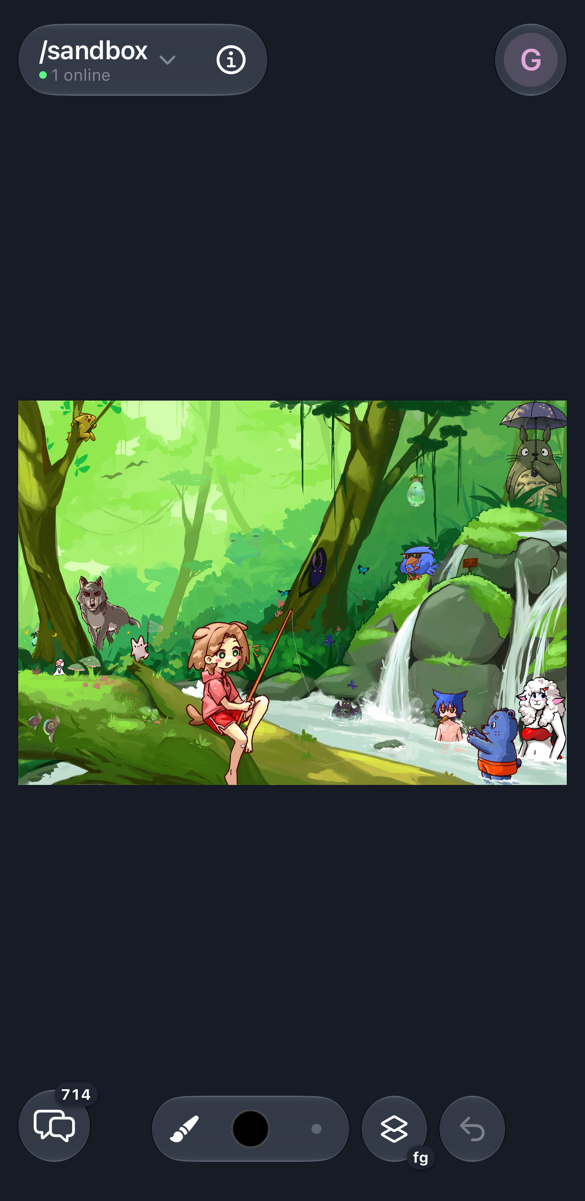
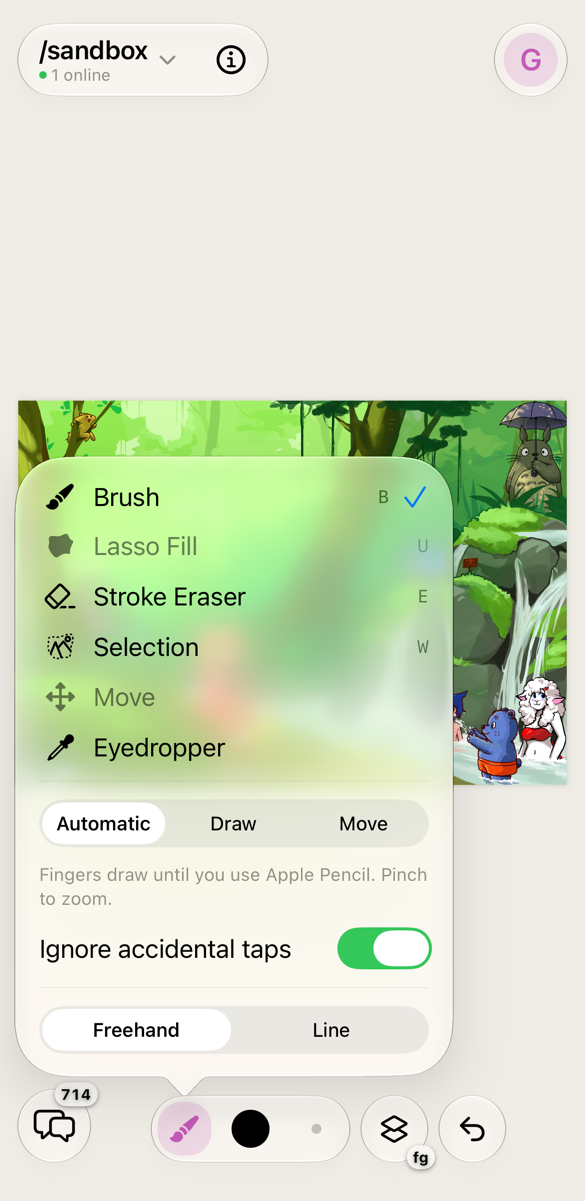
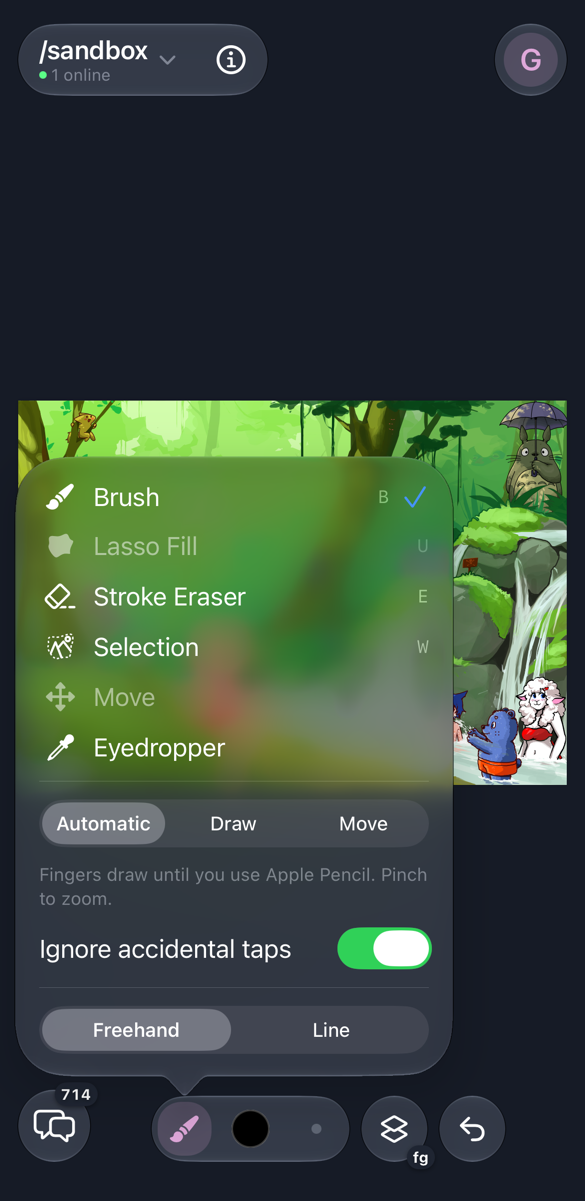
The room button, Room info and You stay at the top. Everything for drawing moves to a row at the bottom, in reach of your thumb:
- Tool — shows the current tool. Tap it for the list of tools and their options.
- Color and Brush size.
- Layers and animations.
- Undo. When there's something to redo, a Redo button pops up above it.
The Chat button sits in the bottom left corner, or the bottom right if you're left-handed.
Left-handed?
Turn on Left-handed in your settings to move the controls you reach for most to the right, under your free hand.
Drawing your first lines
- Pick a room you can draw in. In /main only invited members draw, so try /sandbox first. Tap the room button to switch rooms.
- Draw with a finger, or with an Apple Pencil on iPad. See Apple Pencil and fingers.
- Pinch with two fingers to zoom, and drag with two fingers to move around.
Your line appears for everyone as soon as you lift your finger or Pencil.
Where to next
- Drawing — Pencil and fingers, tools, colors, undo.
- Layers and animation — the timeline, and a step-by-step animation tutorial.
- Rooms and chat — rooms, the gallery, likes, chat, reporting.
- Profile and settings — signing in, your nickname color, themes.
- Questions and answers — "Why can't I draw?" and other common questions.