Profile and settings
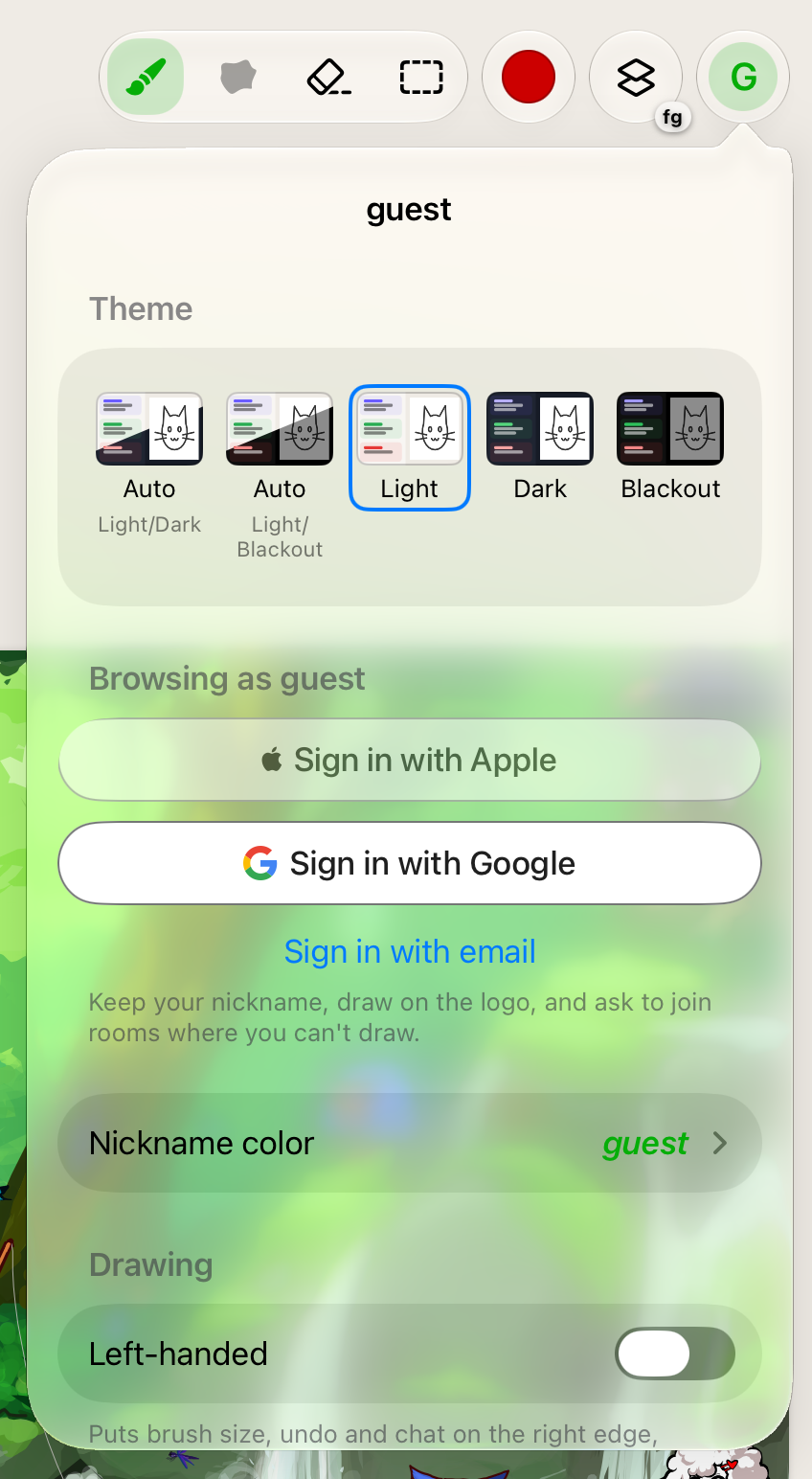
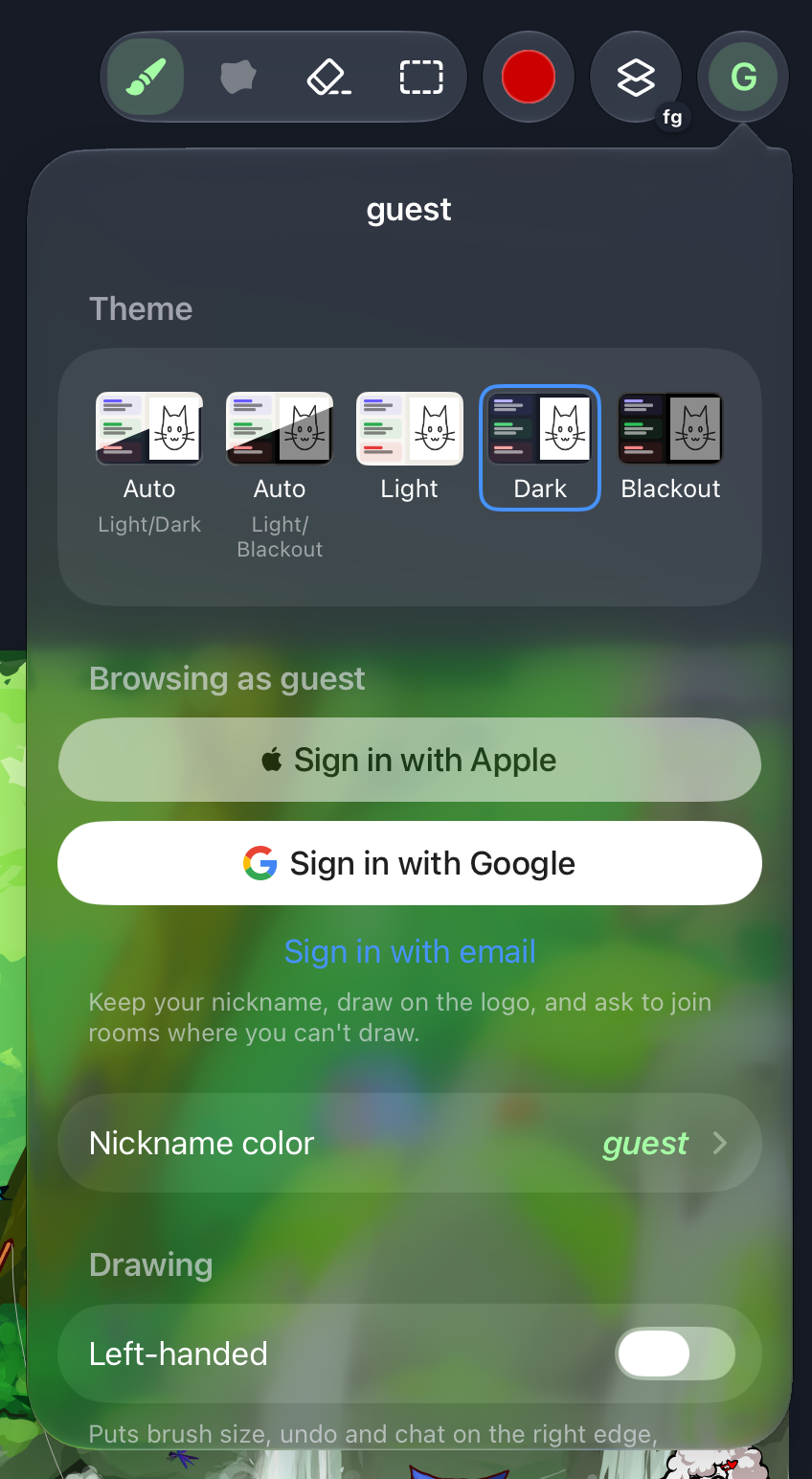
Tap your avatar at the top right to open your profile and settings.
Guest or signed in
You can draw and chat right away as a guest, with a name like guest1234. Signing in lets you:
- pick your own nickname and keep it on every device;
- like other people's drawings;
- draw on the logo;
- ask to join rooms where you can only watch, such as /main.
To sign in, open the menu and choose Sign in with Google or Sign in with email. With email, you get a code to type in; no password needed.
Nickname and color
Signed in, tap Nickname to change it. Nicknames are unique, so the app checks yours as you type.
Your nickname color is how people recognize you: in the chat, and in the list of who's drawing. Tap Nickname color to pick one. The previews show how it looks in light and dark themes; the app adjusts the color a little where needed, so it's readable in both. As a guest, you can change your color too, for as long as you use the app.
Themes
- Light — for well-lit rooms.
- Dark — a dimmed interface; the drawing keeps its real colors.
- Blackout — even darker, with the canvas dimmed too: for drawing in bed or late at night.
- Auto: Light/Dark — follows your device's appearance setting.
- Auto: Light/Blackout — the same, with Blackout instead of Dark. Handy if you only turn on dark mode at bedtime.
The theme is a setting of this device only.
Left-handed
Left-handed moves controls to the right side of the screen, under your free hand: on iPad the brush size, undo and chat, and side panels too; on iPhone the chat button.
Drawing with fingers
The Fingers setting is in the tool options: tap the selected tool (on iPhone, the tool button at the bottom). See Apple Pencil and fingers.
Blocked people
Once you've blocked someone, the menu shows how many people you've blocked and an Unblock All button. See Reporting and blocking.