Drawing
Apple Pencil and fingers
Apple Pencil always draws. A mouse or trackpad does too. Your fingers can either draw or move the canvas. You choose which by tapping the selected tool and setting Fingers. On iPhone, that's the tool button at the bottom, which also lists the tools.
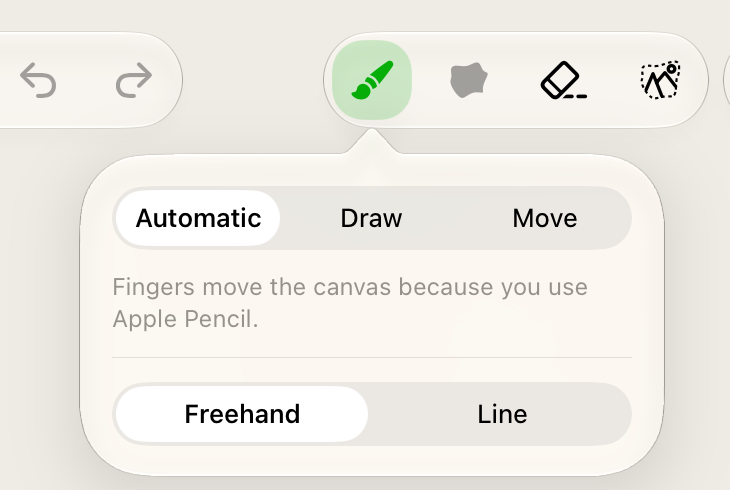
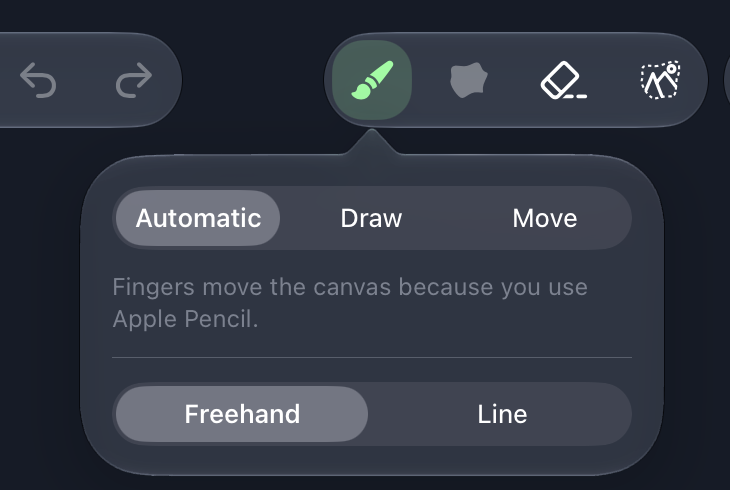
- Automatic (the default) — fingers draw until you use an Apple Pencil, then they move the canvas. On iPhone, fingers always draw. If Only Draw with Apple Pencil is on in your iPad's Settings, fingers move the canvas from the start.
- Draw — one finger draws, two fingers move and zoom.
- Move — fingers only move and zoom.
The first time you draw with a Pencil, the app tells you that fingers now move the canvas. Tap Draw with finger in that message if you'd rather keep drawing with your finger.
Accidental taps
When fingers draw, Ignore accidental taps (on by default) skips marks so small they'd be hidden under your fingertip. A line starts only once it's bigger than that. To draw small details, zoom in or use the Pencil. You can also turn the option off.
Other ways the app avoids stray marks:
- A finger resting next to the Pencil while you draw is ignored, and so is your palm.
- If a second finger lands while you draw with one finger, the line is cancelled and both fingers move the canvas.
Two-finger tap
Tap with two fingers to undo. If you're in the middle of a line, the two-finger tap cancels that line instead, and nobody ever sees it.
Pencil double-tap and squeeze
Double-tap and squeeze on Apple Pencil do what you've chosen in your iPad's Settings › Apple Pencil: switch to the previous tool, show the colors, show the brush size, or show a small tool palette next to the Pencil's tip. Switch to eraser picks the Stroke Eraser.
With a Pencil that supports hover, a dot under the tip shows where the line will start, in its real size and color.
Moving around the canvas
- Zoom: pinch with two fingers.
- Move: drag with two fingers, or with one finger when fingers are set to move.
- With a trackpad, pinch and two-finger scroll work too.
You can't lose the drawing: if you push it off the screen, it comes back far enough to stay in view.
Tools
On iPad, the tools sit at the right of the top bar; on iPhone, tap the tool button at the bottom to pick one. Your line is sent to everyone in the room when you lift the Pencil or finger.
Brush
The basic tool: draw lines freely.
Tap the Brush while it's selected to choose Freehand or Line. Line mode draws perfectly straight lines from where you start to where you lift. Lines with fewer points also keep the room lighter.
Lasso Fill
Draw a closed shape, and it's filled with your color. It's the quickest way to color large areas, and much lighter for the room than filling with the brush.
Some rooms don't offer Lasso Fill to guests, or to anyone. It's dimmed there.
Stroke Eraser
Drag over lines to remove them. The eraser removes whole lines that it touches, not parts of them. The lines fade as you go and are removed for everyone when you lift.
- It only removes your own lines, on the frame you're drawing on.
- Removed too much? Undo brings back everything from that one drag.
Why isn't there an eraser for parts of lines? See the FAQ.
Selection
Tap a line to select it, or draw a loop around several lines. Only your own lines on the current frame can be selected, and everything else fades so you can see what you've got.
A bar under the top bar shows how many lines are selected and lets you:
- choose whether a new tap or loop adds to the selection, replaces it or subtracts from it;
- delete the lines (undo brings them back);
- move them to another frame: tap the frame in the timeline that opens, then Move;
- reset the selection.
Color
Tap the color button to open the picker.
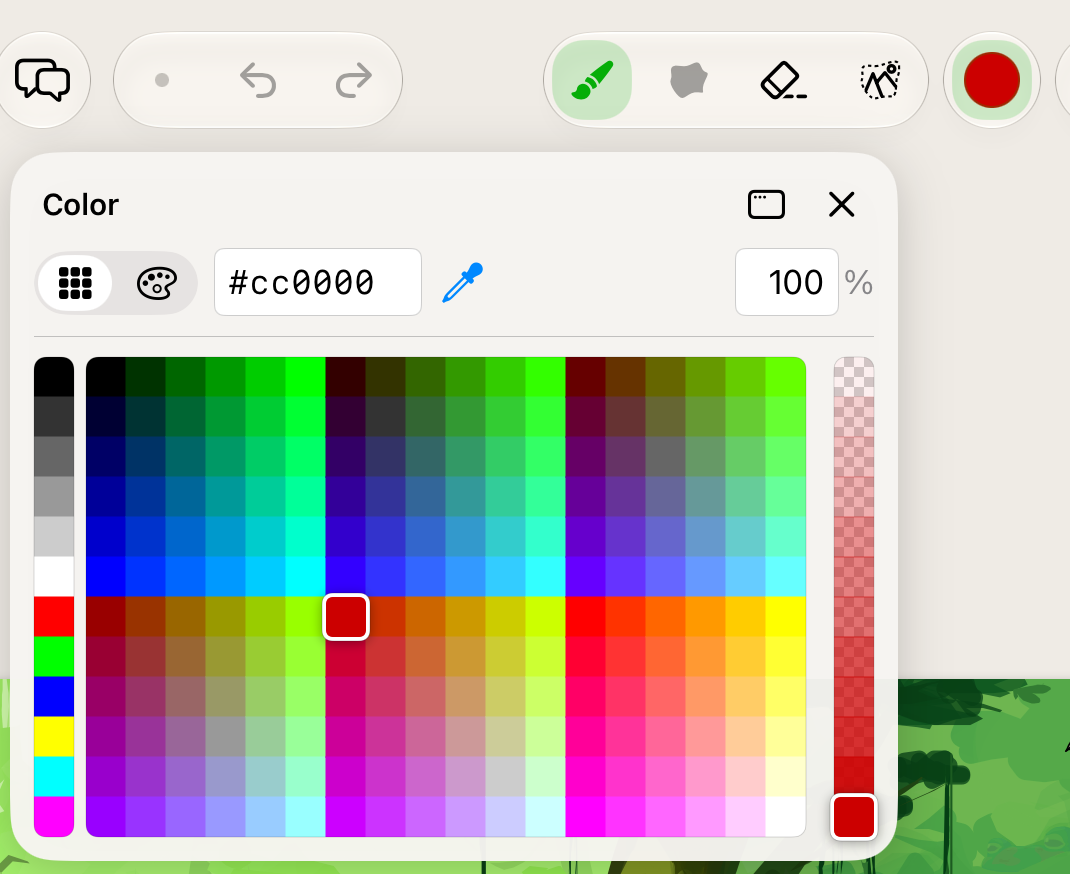
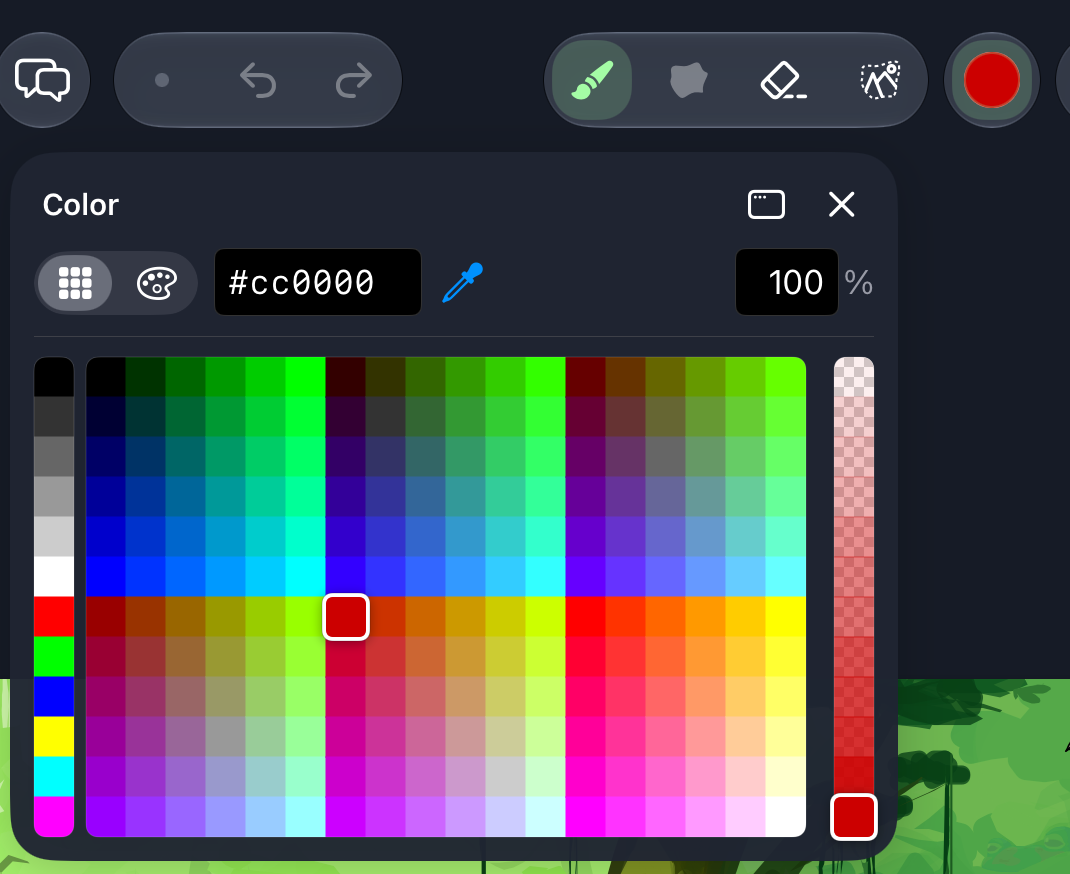
- Grid or Spectrum — switch with the buttons at the top left. In the grid, slide across the colors and lift on the one you want.
- Opacity — the strip on the right, or type a percentage.
- Hex — type a color code like
#cc0000. - Eyedropper — picks a color from the canvas. A magnifier shows the exact spot; lift to pick, and you're back to the tool you had.
Double-tap a color to pick it and close the picker in one go.
On iPad in landscape, you can pin the picker at the side of the screen to keep it open while you draw. Use the menu in its header.
Brush size
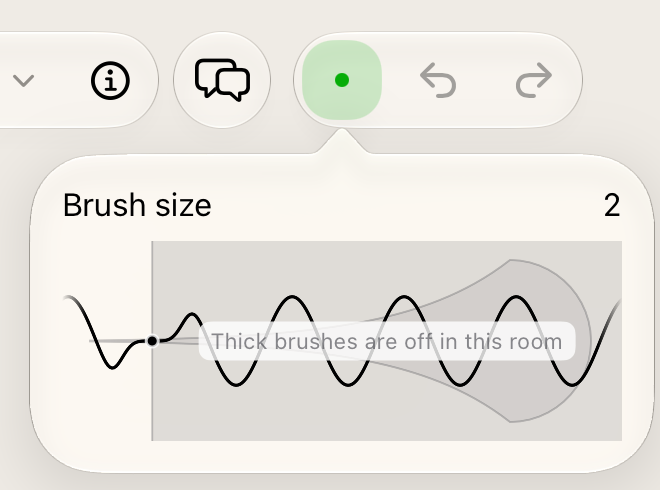
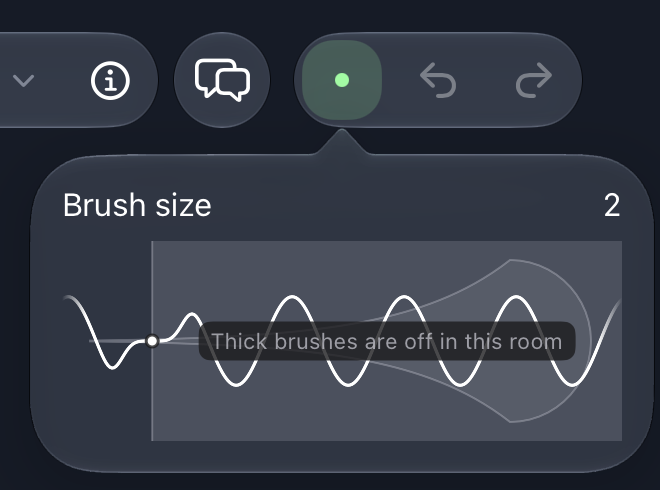
On a wide iPad screen, the brush size slider sits in the top bar. Otherwise, tap the brush size button: in the top bar on iPad, in the bottom row on iPhone. The preview shows the line exactly as thick as it will be on the canvas at your current zoom.
Undo and redo
- Tap Undo to take back your last action: a line, an erase, a deleted or moved selection, or a change to layers and frames. You can also two-finger tap the canvas.
- Hold Undo to undo many lines at once. Slide left, and the lines that would go fade out one by one, with a count and how long ago they were drawn. Let go to undo them, or slide back to the end to undo nothing.
- Redo brings back what you undid, until you do something new. On iPhone, the Redo button pops up above Undo while there's something to redo.
Undo covers what you did in the app on this device, even after you restart it.
Keyboard shortcuts
With a keyboard attached:
| Key | Action |
|---|---|
| B | Brush |
| U | Lasso Fill |
| E | Stroke Eraser |
| W | Selection |
| X | Eyedropper |
| ⌥ (hold) | Pick a color while you hold it |
| ⇧ (hold) | Draw a straight line while you hold it |
| [ ] | Brush size (with ⇧: bigger steps) |
| Space (hold) | Move the canvas with the pointer |
| − = | Zoom out and in (with ⇧: faster) |
| ⇧ R | Fit the canvas to the screen |
| ⌘ Z | Undo |
| ⇧ ⌘ Z | Redo |
| Esc | Cancel the line you're drawing, or leave the eyedropper or the selection |