Layers and animation
Tap Layers and animations (in the top bar on iPad, in the bottom row on iPhone) to open the timeline. It stays open while you draw, so you can switch frames and draw without closing it.
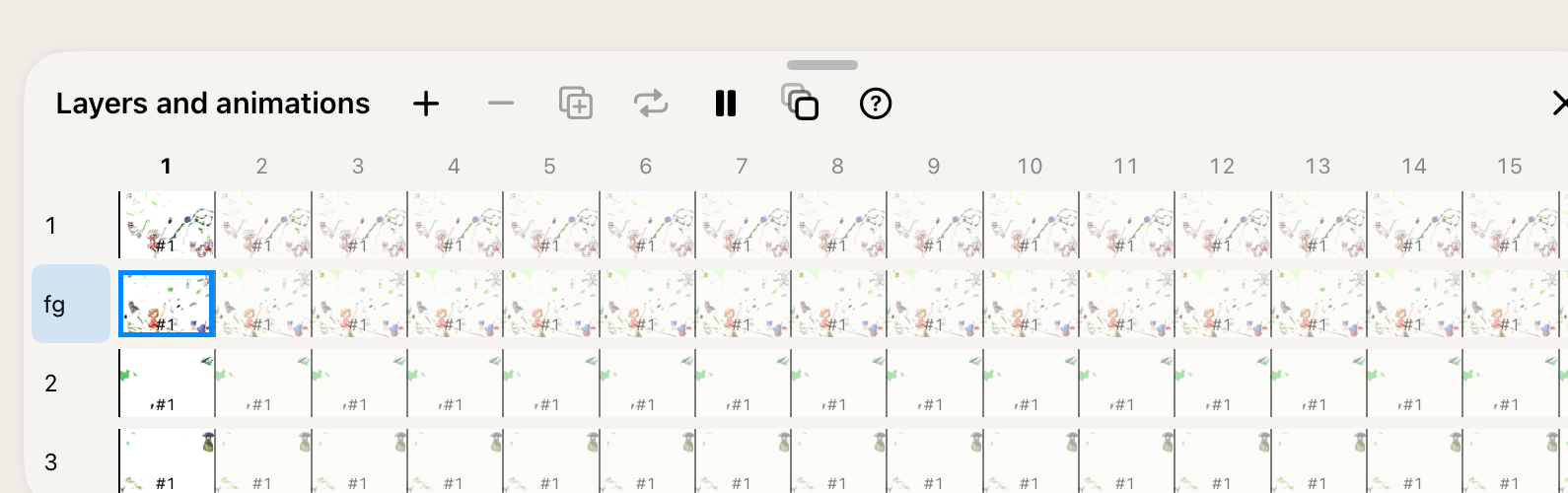
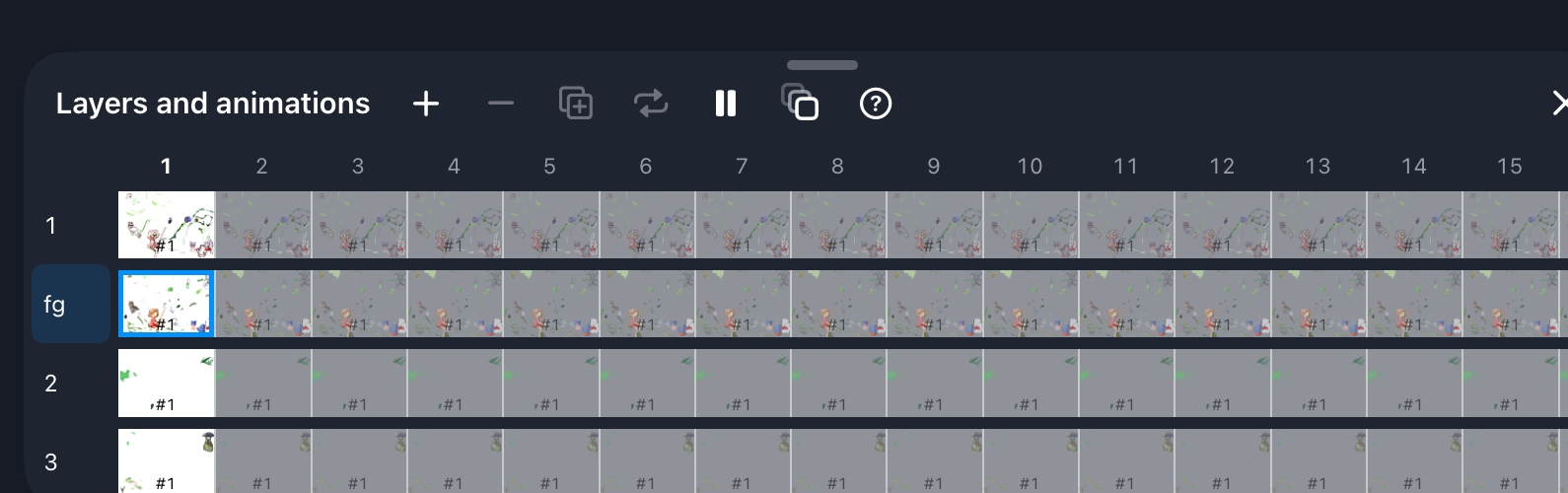
Layers
Each row of the timeline is a layer; the top row is drawn on top. Every room has two layers that are always there: fg (foreground) and bg (background). Anyone can draw on them.
To make your own layer, tap Add… and choose Public layer › Above or Below the selected one. Layers you created have their number in bold. A layer's number shows when it was created, not where it is.
You can only have one empty layer at a time: draw something on it before you add another.
Draw on your own layer
Lines on someone else's layer can be removed by its creator. For anything you care about, make your own layer.
Frames and ticks
An animation plays at 8 frames per second: each column of the timeline, a tick, lasts 125 ms. On your own layers you can:
- Add a frame — Add… › Frame › Left or Right of the selected one.
- Repeat a frame — Repeat frame shows the selected frame once more, right after it. A repeated frame is not a copy: drawing on it changes it everywhere it's shown. Repeats are how you slow a moment down.
- Remove a frame — Remove frame. Removing the last frame of a layer deletes the layer. Undo brings either back, with its lines.
- Reorder frames — touch and hold a frame until it lifts, then drag it along the row. With the Pencil, just drag.
Tap a frame to select it: that's where your new lines go. The label under the Layers and animations button shows which layer that is.
Playing and onion skinning
- Play / Pause — while paused, the canvas shows every layer at the selected tick, so you can see exactly how a moment looks.
- Onion skinning — shows the frames before (and after) the selected one, faded, so you can see where to draw the next one. Choose how many in its menu.
Loops
Layers can have different numbers of frames, and each layer loops on its own. A 3-frame layer next to a 4-frame layer gets out of step after the first round. The timeline goes on as far as you scroll, so you can see what comes up later. Frames of a layer's other rounds are dimmed, which makes it easy to spot where the layers stop lining up. The tutorial below shows how to fix that.
Arranging the timeline
- Resize: drag the handle at the top edge of the timeline.
- Zoom the grid: pinch the frames to make them bigger or smaller.
- Move it: on iPad in landscape, you can pin the timeline at the side of the screen, which gives you a tall list of layers with big previews. You can also let it float over the canvas. Use the menu in its header, or drag the header away from the edge to make it float.
- Close quickly: double-tap a frame to select it and close the timeline.
Layers also have animation modes for random frames and dice rolls. They're explained in the web guide and work the same in the app.
Tutorial: Newton's cradle
We'll build this animation step by step, and on the way see what can go wrong and how to fix it. Draw in a room where you can draw, such as /sandbox, and keep the timeline open.